You run payroll. Every cycle, the same question hits your desk: who hasn't submitted, who hasn't been approved, who logged over 40, and is anything missing before I push the file to the payroll vendor. This guide walks you through the eight reports that answer that question — and the order to run them in so you close clean every time.
This guide assumes your base role is Staff, Approver, or Admin, and that an Admin has granted you the HR Analyst Access add-on. If the reports listed below don't appear in your Reports tab, that Access is missing — ask your Primary admin to enable it on your User profile.
Getting started
Your Admin grants you HR Analyst Access on top of your base role. That Access is what unlocks the payroll-side reports — Payroll Readiness, Unfinished, Pending Approvals, Late Submissions, 40h Threshold, Weekly Reconciliation, Compliance Gaps, and HR Export. Without it, you'll see the workspace's Charge-code Effort and Staff Effort reports, but the HR reports are hidden. Access is granted per person on the User profile, so if you change roles or move workspaces, your Admin re-grants.
Once your Access is live:
- Sign in at your workspace URL — for most workspaces that's
your-org.hoursatwork.com. - Click Reports in the top navigation.
- Open the Report dropdown in the top right. You'll see two groups — Reports (the per-period and roster reports) and Utilities (Charge-code Effort and HR Export). Your daily work lives in both.
- Pick Payroll Readiness first — that's your dashboard. Bookmark the URL once it loads.
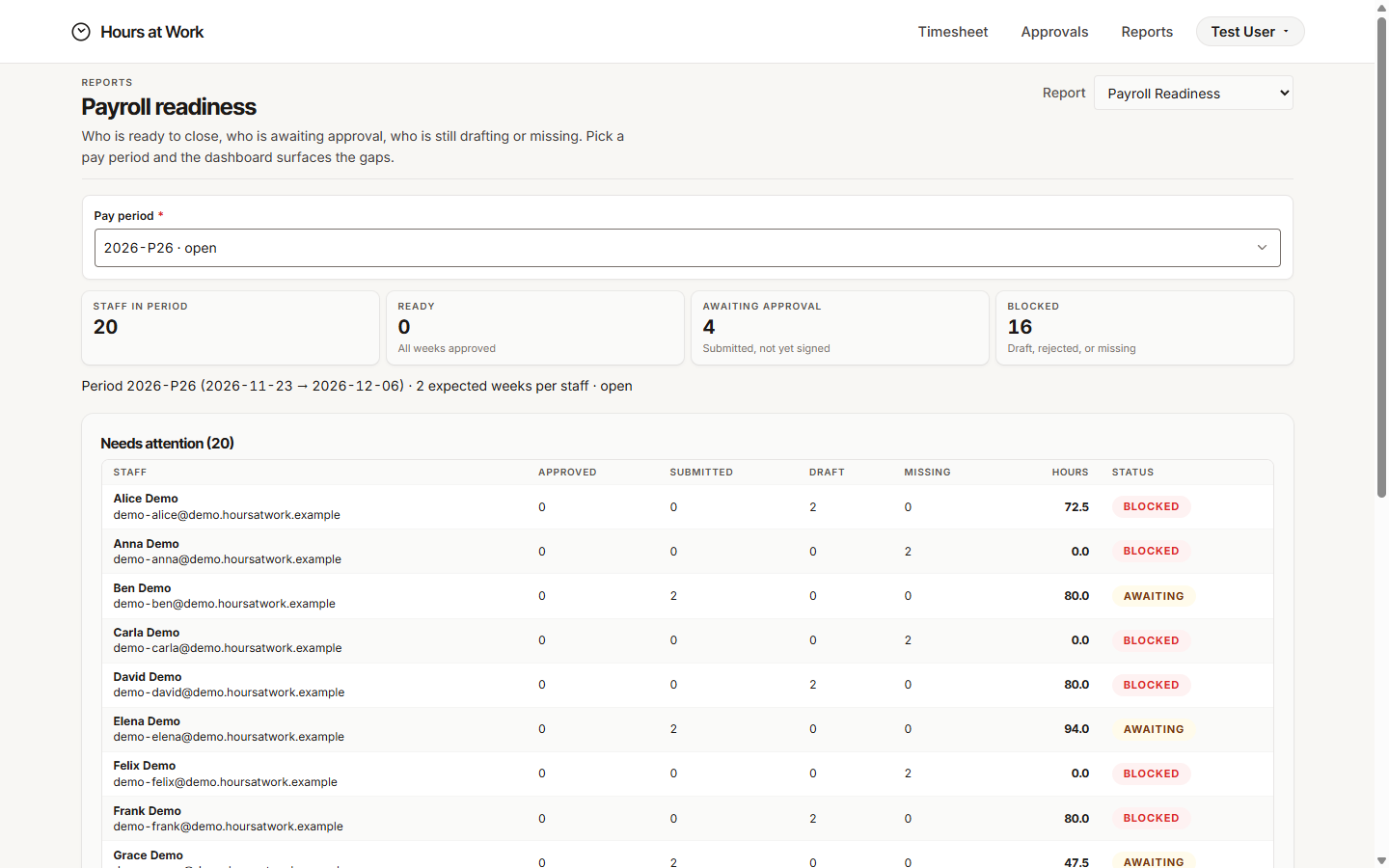
Why this matters. Every other report you run answers a question that Payroll Readiness raised. Start there, and the rest of your weekly close becomes a chase list, not a treasure hunt.
Daily workflow
You won't open all eight reports every day. Between pay periods, the rhythm is light — a quick check that nothing is sliding. The heavy lift happens on close day. Here's the daily pattern.
Open Payroll Readiness and pick the current pay period
Open Reports → Payroll Readiness. The Pay period dropdown lists every period your Admin has seeded, with an open or closed tag. Pick the period you're closing — usually the most recent open one.
You'll see four summary tiles across the top: Staff in period, Ready, Awaiting approval, and Blocked. Underneath, a Needs attention table lists every staff member who isn't ready yet, with per-week counts in APPROVED, SUBMITTED, DRAFT, and MISSING columns, plus a HOURS total and a STATUS badge.
The STATUS badge is the one you act on:
- AWAITING — the staff member submitted, but their approver hasn't signed. Nudge the approver.
- BLOCKED — nothing usable on file. The timesheet is still in draft, has no rows at all, or was rejected and never resubmitted. Nudge the staff member.
Why this matters. READY is the only state where you can leave a person alone. AWAITING and BLOCKED both keep the pay period from closing clean — but they need different fixes, and the badge tells you which.
Triage by status
Walk the table top to bottom. For each row:
- BLOCKED with hours in DRAFT? The staff member has work in progress — message them with the period end date and the Submission deadline.
- BLOCKED with MISSING > 0 and zero hours? The staff member hasn't started at all. This is the higher-risk case — chase first.
- AWAITING? The staff member did their part. Find their Approver (your Admin manages Approver assignments) and ask them to clear their queue.
For chronic AWAITING rows, see the Approver guide → End of pay period — clear the queue — it walks the approver through the same workflow from the other side.
Spot-check Unfinished and Pending Approvals
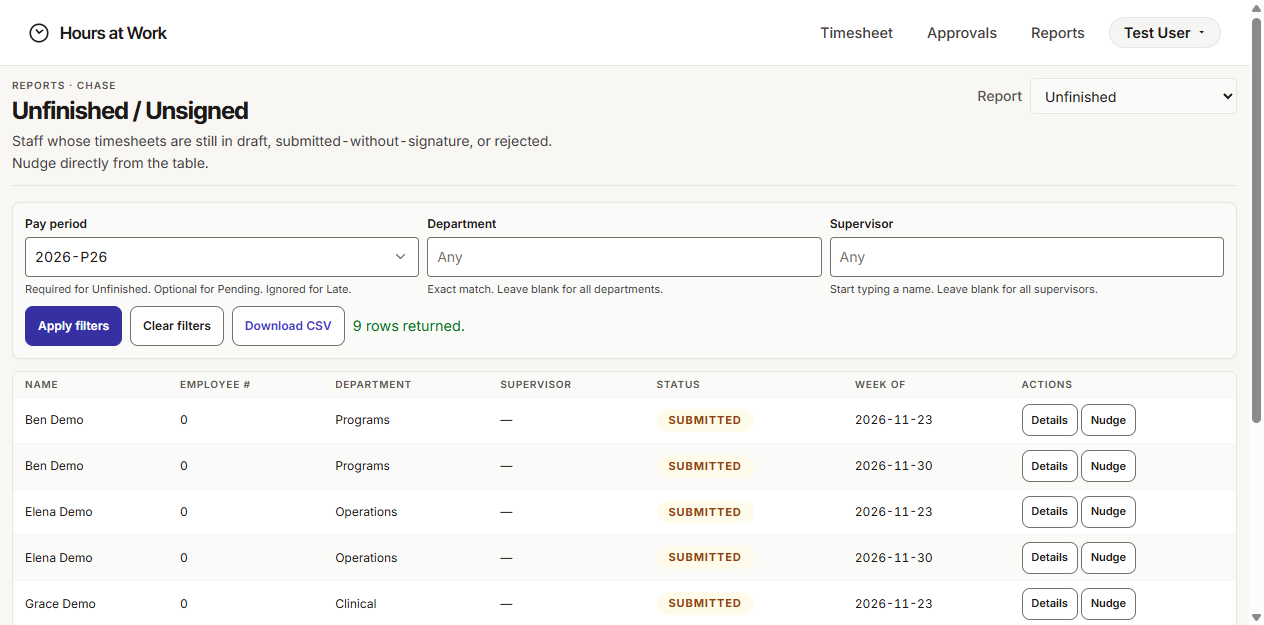
Open Reports → Unfinished. Pick the same pay period and click Apply filters. You'll get the same staff Payroll Readiness flagged as BLOCKED, but in a one-row-per-staff format that's easier to copy-paste into email. The CSV download is the same data — handy when you're sending the full chase list to a department lead.
Open Reports → Pending Approvals. Same filter mechanics. This one shows submitted timesheets sitting in an approver's queue, sorted oldest-first — exactly the AWAITING bucket from Payroll Readiness, but with the approver's name on each row so you know who to ping.
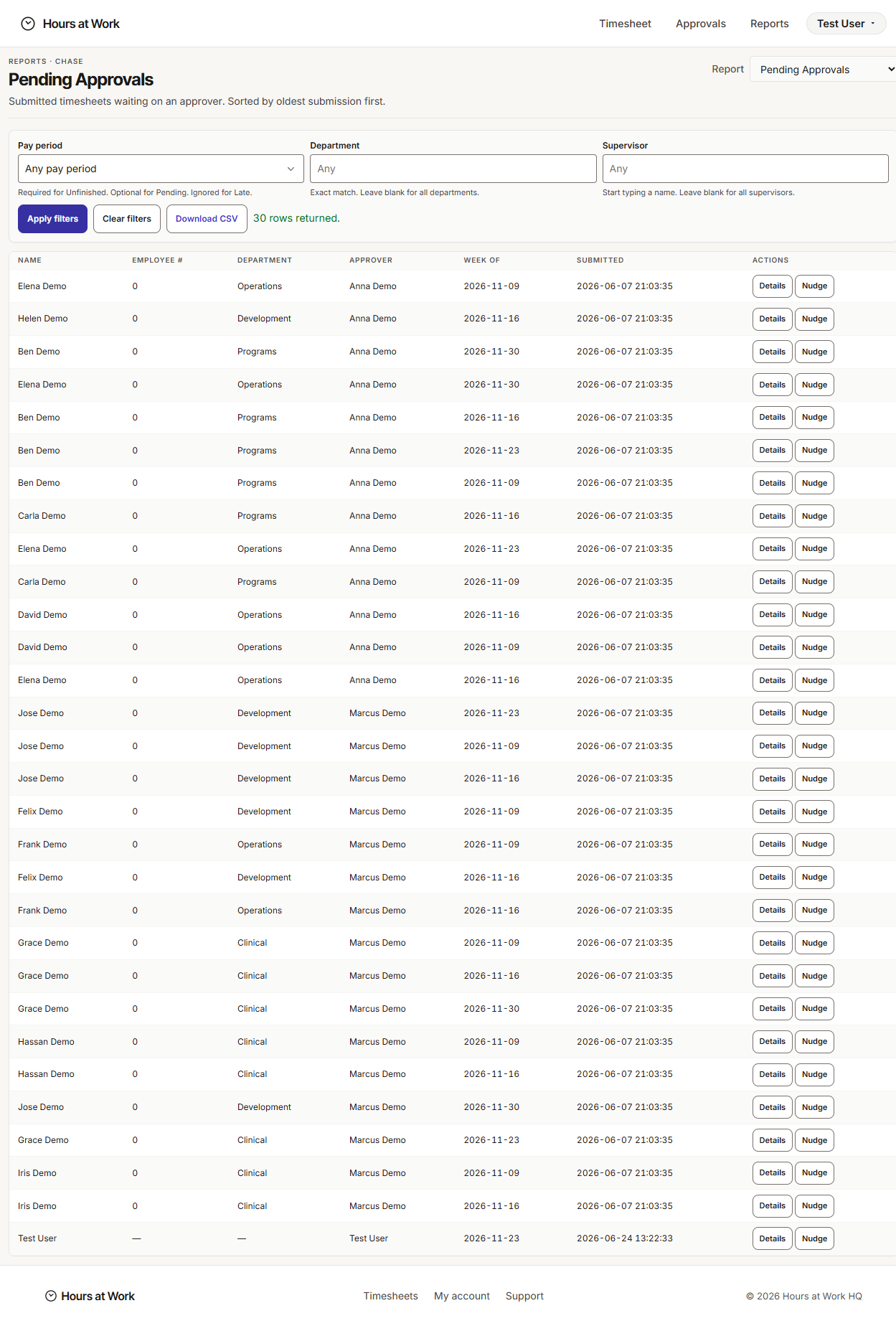
Why this matters. Payroll Readiness gives you the big picture. Unfinished and Pending Approvals give you actionable lists. Use the big picture to decide if you have a problem; use the lists to fix it.
Periodic tasks
These are the reports you run on close day — the day after the pay period ends, before you cut the payroll file.
Run Payroll Readiness one more time
Same workflow as the daily pass — but now the goal is an empty Needs attention table. Every staff member should be ready (or, equivalently, the Ready tile equals Staff in period). Until they match, you're not ready to export.
If you can't get there — a staff member is on leave, a contractor finished mid-period, someone refuses to submit — work with your Admin. Some of those cases need a Period locking decision; others just need a manual nudge.
Run Late Submissions
Open Reports → Late Submissions. This one ignores the Pay period filter and instead looks at the last six closed periods. It lists every timesheet submitted after your workspace Submission deadline — the number of business days after period end that staff have to submit, configured by your Admin in Settings → Workspace.
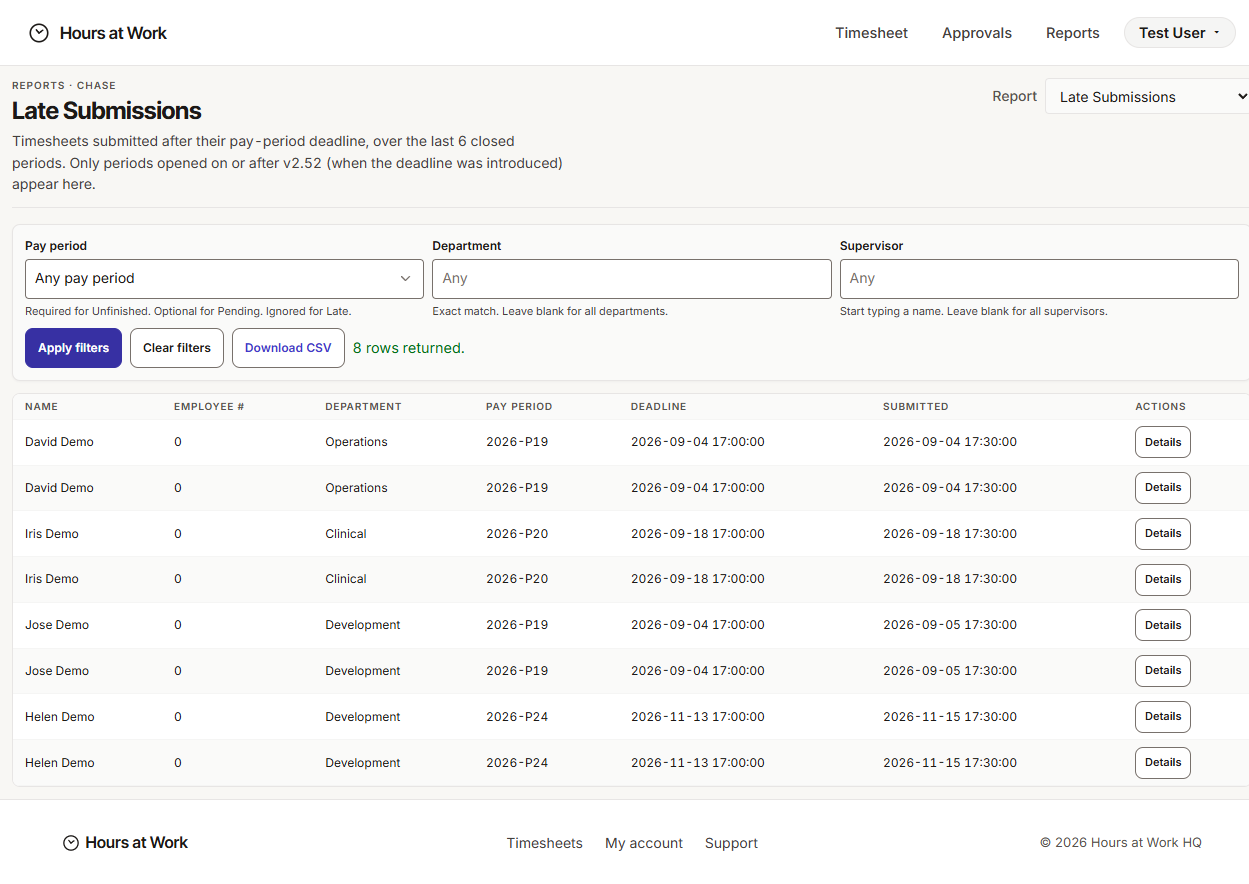
Why this matters. A one-off late submission is a fluke. A pattern across periods is a coaching conversation — or a sign your Submission deadline is too aggressive. Either way, this report is your evidence.
Run 40h Threshold
Open Reports → 40h Threshold. Pick a Week of (Monday) — the report runs on a single seven-day window, not a full pay period, so for a biweekly close you'll run it twice (once per week). The report sorts staff into three buckets:
- OT — actual hours exceeded the FTE-adjusted expected hours.
- ON TRACK — actual hours land within the tolerance of FTE × 40 for the week.
- UNDER — actual hours fell short of FTE-adjusted expected.
Each row shows the staff member's name, Employee #, department, FTE, total hours, expected hours, variance, and bucket, plus a Details drill-in.
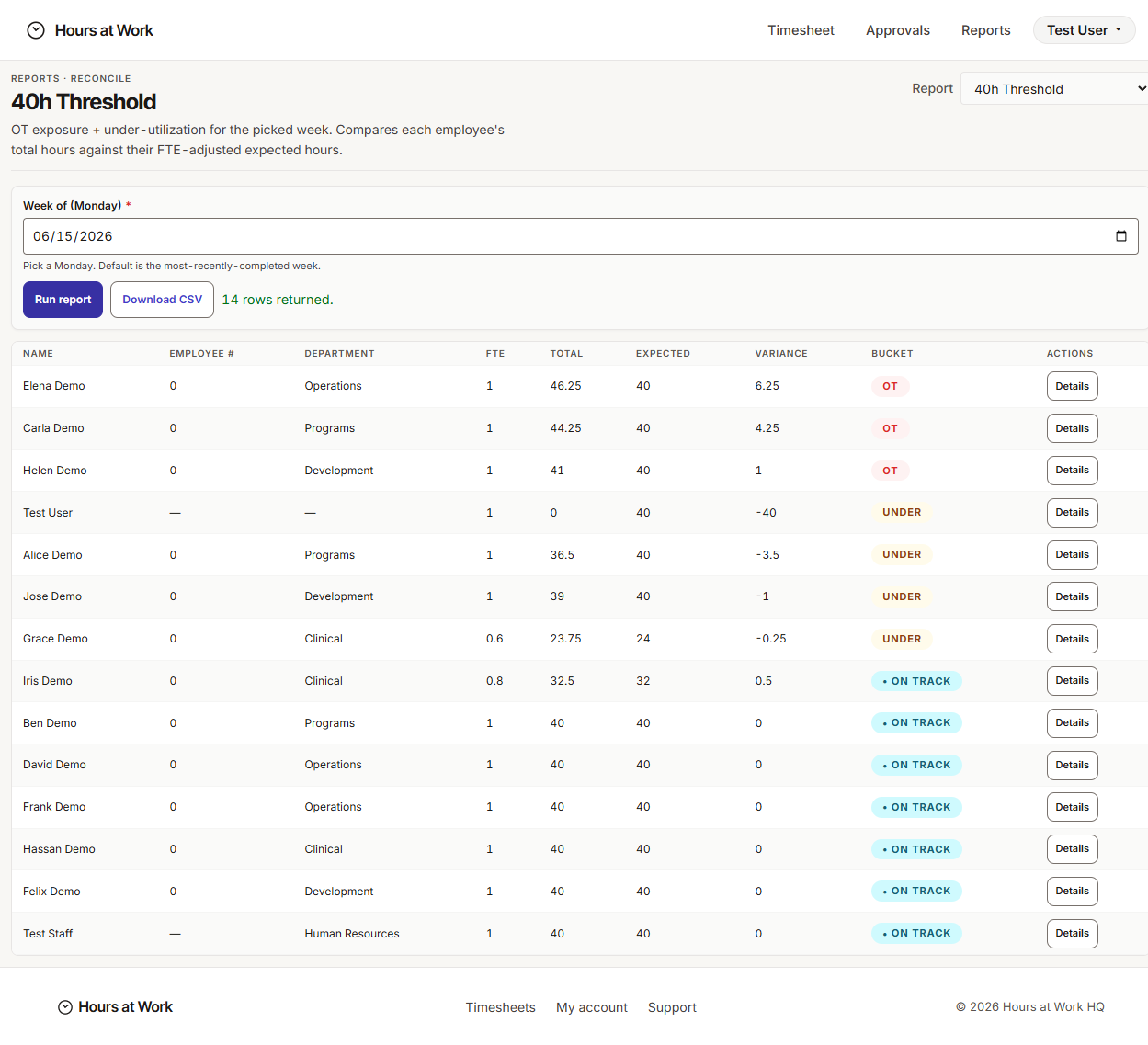
Why this matters. OT exposure costs the workspace money and may need approver review before payroll. UNDER for a full-time staff member usually means they forgot to log a day — or they're on uncoded leave. Both are worth catching before payroll runs. ON TRACK is the goal state and needs no action.
Run Weekly Reconciliation
Open Reports → Weekly Reconciliation. Pick the week you just closed. You'll get a per-employee table — by department — with worked hours, leave hours, total, expected, and variance for the week. The CSV mirrors your payroll vendor template, so this is also a useful sanity check against the file you're about to upload.
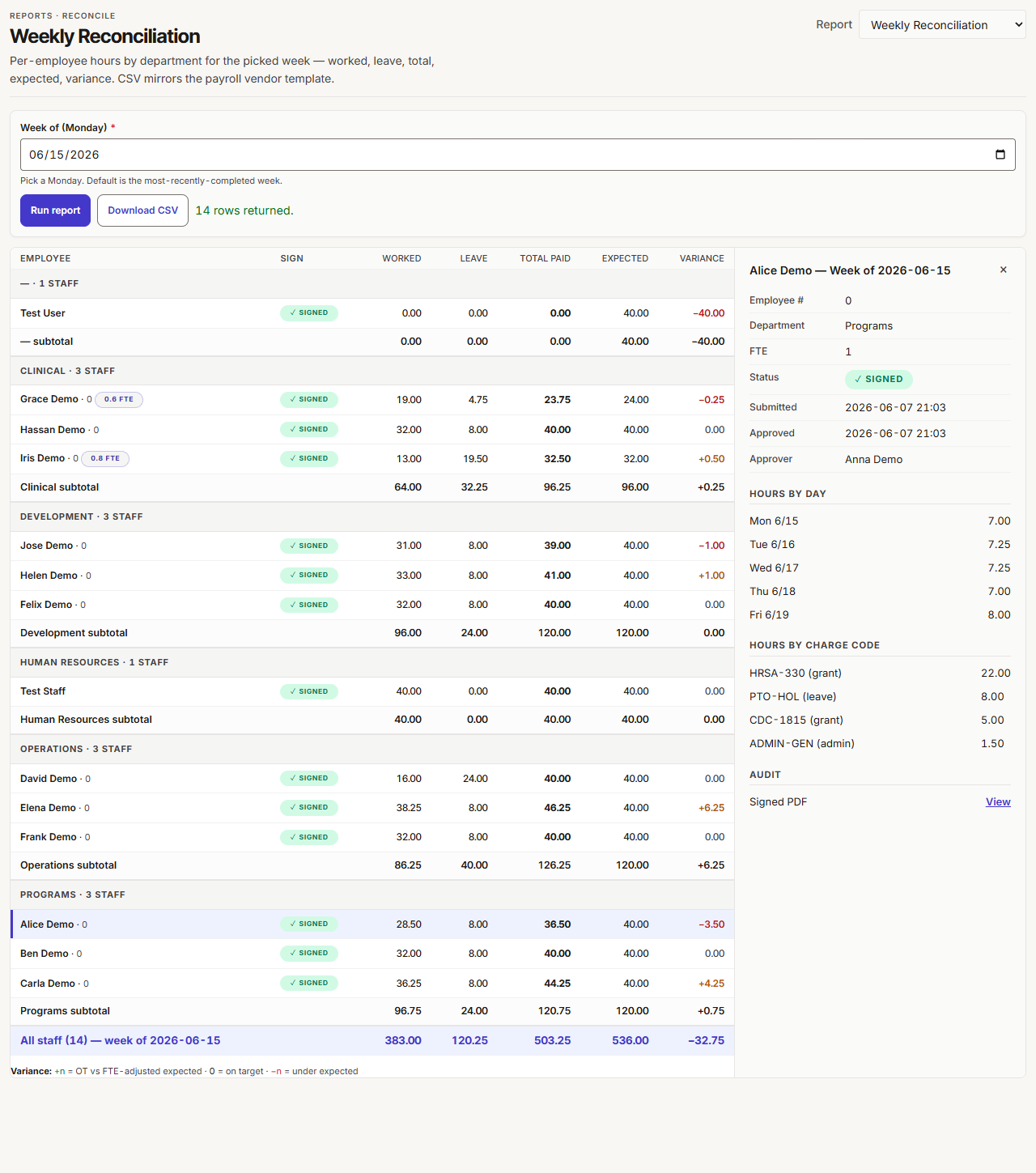
Why this matters. Payroll Readiness shows you the period totals. Weekly Reconciliation lets you spot a single bad week inside an otherwise-clean period — a holiday week where someone logged 40 worked hours instead of 32 worked plus 8 holiday, for instance. Catch it here, fix it before the export.
Run Compliance Gaps
Open Reports → Compliance Gaps. Click Apply filters to list every active staff member with a missing field. The GAP column tags each row with one of three values — No approver, No hire date, or No employee # — and the same person may appear more than once if they have more than one gap.
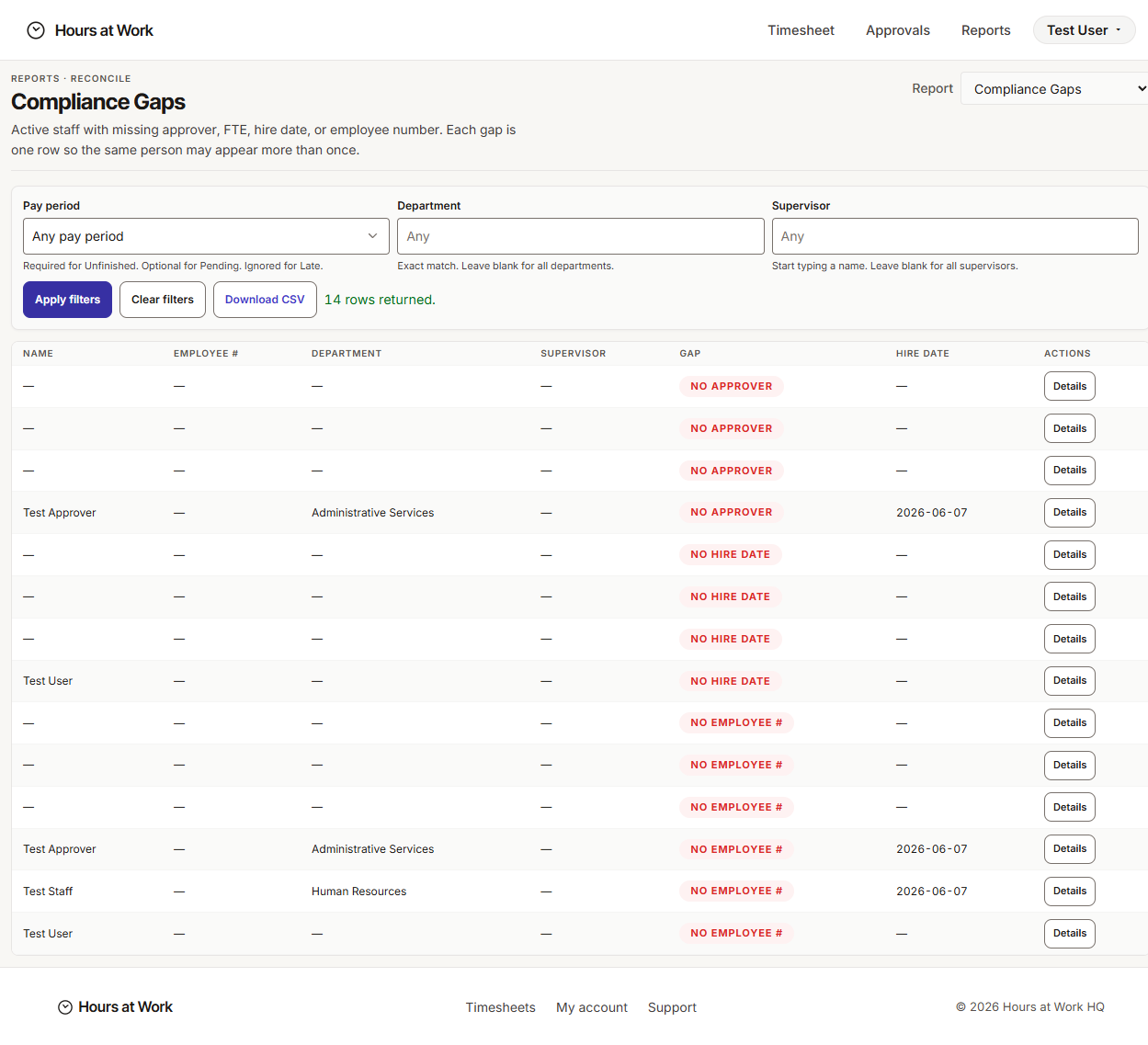
Why this matters. A missing approver means a timesheet has nowhere to go. A missing Employee # means the HR Export will silently drop that person. A missing hire date breaks tenure-based reporting and seniority audit trails. These are quiet failures — staff don't notice until payroll skips them. Run this every close day so the fixes happen during weekday hours, not at 9pm on Friday.
Run HR Export
Open Reports → HR Export. Three things to pick before you download:
- Pay period — the closed pay period you're exporting.
- Format — Generic, ADP, Paychex, or QuickBooks. Pick the one that matches your payroll system; the column ordering and category mapping change to match each vendor's import template.
- Final or Provisional snapshot — Final is the authoritative payroll feed and requires the period to be closed. Provisional snapshot lets you preview an export while the period is still open; the file is watermarked PROVISIONAL and the action is logged.
Click Preview export to see the rows before you download, then click Download CSV. The file uses your workspace Pay categories (REG, OT, HOL, VAC, SCK, and any custom ones your Admin set up) in the PAY_CODE and PAY_CATEGORY columns — that's the format your payroll system expects. Charge code information rides along in FUND_CODE and FUND_NAME for downstream allocation, but the pay-category mapping is what drives gross pay.
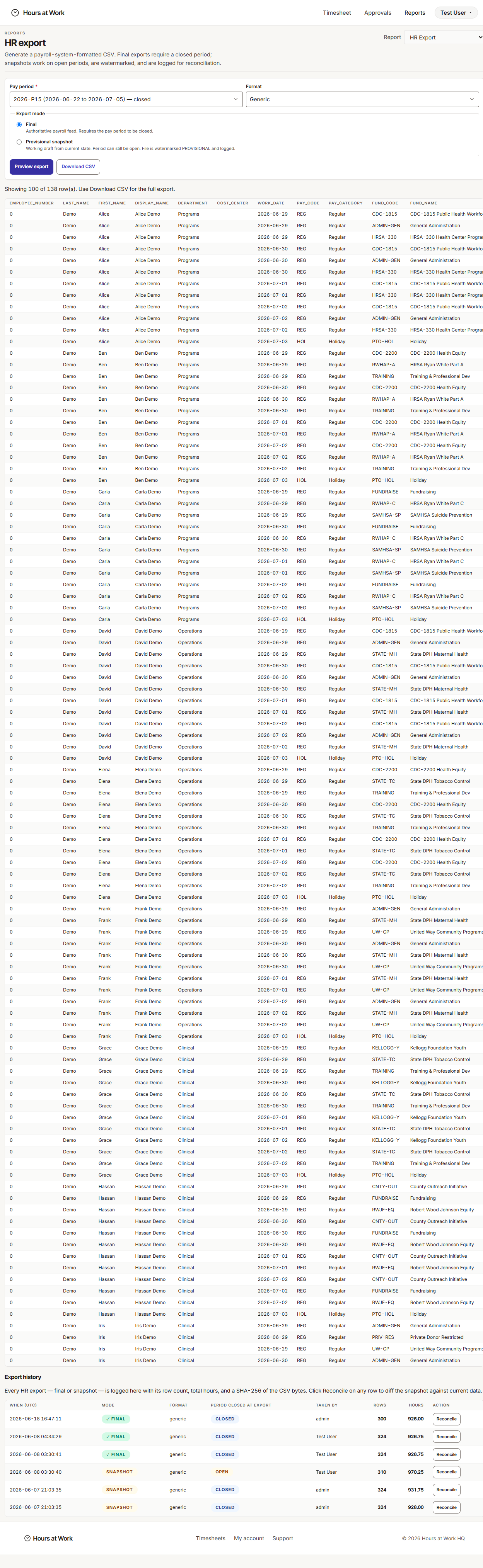
Every export is recorded in the Export history region at the bottom of the page — you can see who ran it, when, and whether it was Final or Provisional. That history is your audit trail if payroll ever asks why two CSVs of the same period exist.
Why this matters. This is the deliverable. Every other report this week led here. Hand the CSV to your payroll system. If it imports cleanly, your close is done.
After payroll runs, ask your Admin to close and lock the period
Once the payroll file is uploaded and reconciled, tell your Admin to:
- Mark the pay period CLOSED in Settings → Pay periods.
- Apply a Period lock with the Lock through date set to the period end date.
That second step is the one people forget. The CLOSED status hides the period from staff-facing date pickers, but Period locking is what stops a staff member from editing an old approved week. See Admin guide → After payroll runs — apply a period lock for the full mechanics.
Weekly spot-checks between pay periods
For the off-week (the week between closes), run Weekly Reconciliation for the most recently closed week. Look for anyone with a variance over a few hours. Small, frequent variances are noise; large variances are usually a misallocated charge code or a forgotten leave entry. Better to catch them now than at next close.
Reports and outputs
A quick reference to what each report tells you and when to use it.
| Report | What it shows | When to use |
|---|---|---|
| Payroll Readiness | Per-staff rollup for one pay period — APPROVED / SUBMITTED / DRAFT / MISSING counts, HOURS total, AWAITING or BLOCKED status | Every day during a close; the dashboard |
| Unfinished | Staff with a timesheet in draft, submitted-without-signature, or rejected for a given period | Daily chase list; mirrors the BLOCKED rows from Payroll Readiness |
| Pending Approvals | Submitted timesheets sitting in an approver's queue, sorted oldest-first | Daily; tells you which approvers need a nudge |
| Late Submissions | Timesheets submitted after the workspace Submission deadline, last six closed periods | Close day; coaching evidence |
| 40h Threshold | OT / ON TRACK / UNDER buckets with FTE-adjusted expected hours and variance, for one Monday-start week | Close day; OT review and missing-day detection |
| Weekly Reconciliation | Per-employee worked + leave + total + expected + variance for one week, by department | Close day, plus between-period spot checks |
| Compliance Gaps | Active staff flagged with No approver, No hire date, or No employee # | Close day; prevents silent drops in HR Export |
| HR Export | CSV of approved hours by Pay category for one closed pay period, in Generic / ADP / Paychex / QuickBooks format | Close day, after everything else is clean |
Every report has a Download CSV link so you can save evidence for the close package or share a chase list by email.
Troubleshooting
The top friction points you'll hit, and how to clear them.
"Payroll Readiness shows everyone BLOCKED"
Usually the pay period you picked wasn't seeded with the right weeks — so every staff member shows MISSING for every expected week, which scores as BLOCKED. Ask your Admin to open Settings → Pay periods and confirm the period exists and covers the right date range. If it doesn't, your Admin can seed or extend it. See Admin guide → Seed your first pay periods.
The other common cause is that the period is genuinely empty because it hasn't started yet. Pick the most recent closed period instead — if it shows clean, you're fine; the open future period is just waiting for hours.
"40h Threshold shows UNDER for someone you expect at full time"
The report compares actual hours against FTE × 40 for the selected week. UNDER means actual fell short. Two likely causes:
- The staff member's FTE in Settings → User profiles is set wrong (for example, 0.5 when they're actually 1.0). Ask your Admin to fix it; see Admin guide → Grant analyst access for the User profile edit panel.
- The staff member logged time but not all of it — common during holiday weeks if they forgot a HOL entry, or PTO weeks if they forgot a VAC entry. Drill into Details on the report row to see the per-day breakdown.
"Late Submissions list is huge"
If half the workspace is late every period, the Submission deadline is probably too aggressive. The setting lives at Settings → Workspace and is measured in business days after the pay period ends. Default is 2; some workspaces find 3 or 4 works better. Talk to your Admin. See Admin guide → Set your workspace basics.
The fix only applies to future periods — historical late counts don't retroactively clear.
"HR Export CSV is missing someone"
The export silently drops staff who don't have the fields it needs. Two checks:
- Open the staff member's User profile (Settings → User profiles) and confirm they have an Employee # and a default Pay category mapping.
- Confirm their timesheet for the period actually has APPROVED status. Submitted-but-not-signed timesheets don't make it into the export — they need the approver's signature first. Run Pending Approvals to find them.
See the Admin guide for the User profile field reference.
"Compliance Gaps flags a missing approver signature"
Open Approvals → Approved tab and filter to the pay period in question. If the timesheet isn't there, it was never signed — ask the approver to open their queue and sign it. If it is there but Compliance Gaps still flags it, your Admin should check Settings → Approver assignments to confirm the staff-to-approver mapping was effective on the timesheet's week.
For a fiscal-side counterpart to this same close-day discipline, see Fiscal Analyst guide → Funding Reconciliation — Fiscal owns the funder-facing reports while you own the payroll-facing ones, and Compliance Gaps is the one place both sides care about.
See also
- Approver guide — how approvers clear their queues before close, the other side of your AWAITING list.
- Admin guide — pay periods, Submission deadline, User profiles, and Period locking.
- Fiscal Analyst guide — the funder-side counterpart reports that cross-check your close.
- Glossary — every term Hours at Work uses, with definitions.