You're the person funders call when they want to know where the grant money went. Every grant has reporting deadlines, and every deadline needs proof that staff time was allocated to that grant the way the budget said it would be. This guide walks you through the three reports that produce that proof — and the signed-PDF bundle you send the funder when they audit you.
Fiscal Analyst is an Access add-on on top of your base role (Staff, Approver, or Admin). Your Admin grants it on your User profile. In some builds the checkbox reads Fiscal Manager — same Access, different label. If you see "Fiscal Manager" in your workspace, treat it as Fiscal Analyst; the canonical term in this guide and every report is Fiscal Analyst.
Getting started
The first time you sign in as a Fiscal Analyst, take five minutes to get the lay of the land.
Sign in and open Reports
- Go to your workspace URL — for most workspaces that's
your-org.hoursatwork.com— and sign in. - In the top navigation, click Reports.
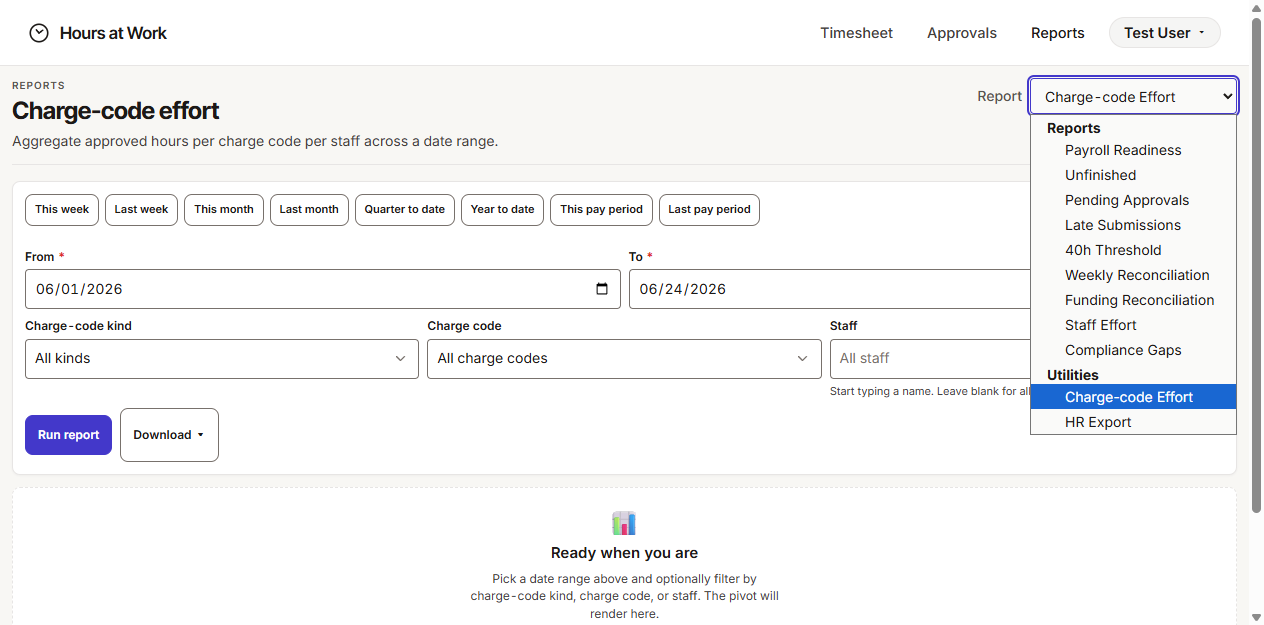
- You'll land on the Charge-code Effort report by default. That's normal. Reports is a single-page browser; the Switch report dropdown at the top changes which report you're looking at.
Why this matters. The Reports tab is where every fund-side number lives. Your own timesheet (if you also log hours) and the Approvals queue (if you're also an approver) are separate — Reports is your home base.
Confirm your Access is live
Open the Switch report dropdown. You should see the full report family:
- Charge-code Effort, Funding Reconciliation, and Staff Effort are your three fund-side reports.
- Payroll Readiness, Unfinished, Pending Approvals, Late Submissions, 40h Threshold, Weekly Reconciliation, Compliance Gaps, and HR Export are the HR-side reports. You'll glance at them when a number doesn't line up, but you'll live in your three.
If the dropdown only shows two or three options total, your Fiscal Analyst Access hasn't been granted yet. Ask your Admin to open your User profile and turn it on. Access is granted per person, so if you change workspaces, your Admin re-grants.
Bookmark your daily two
In your browser, bookmark the workspace's Reports page. The two reports you'll use most are:
- Funding Reconciliation — actual hours versus expected funding splits, by staff and charge code.
- Charge-code Effort — total approved hours per charge code for any date range.
Daily workflow
A funder asks "where did our money go this quarter?" That's the question you answer most. Here's how.
Open Funding Reconciliation
From the Switch report dropdown, pick Funding Reconciliation. This is your headline report. It shows, for each staff member and each charge code, how many hours they were expected to log against that charge code (based on their funding split on their User profile) versus how many they actually logged — bucketed against your workspace tolerance so over- and under-attribution surface at the top.
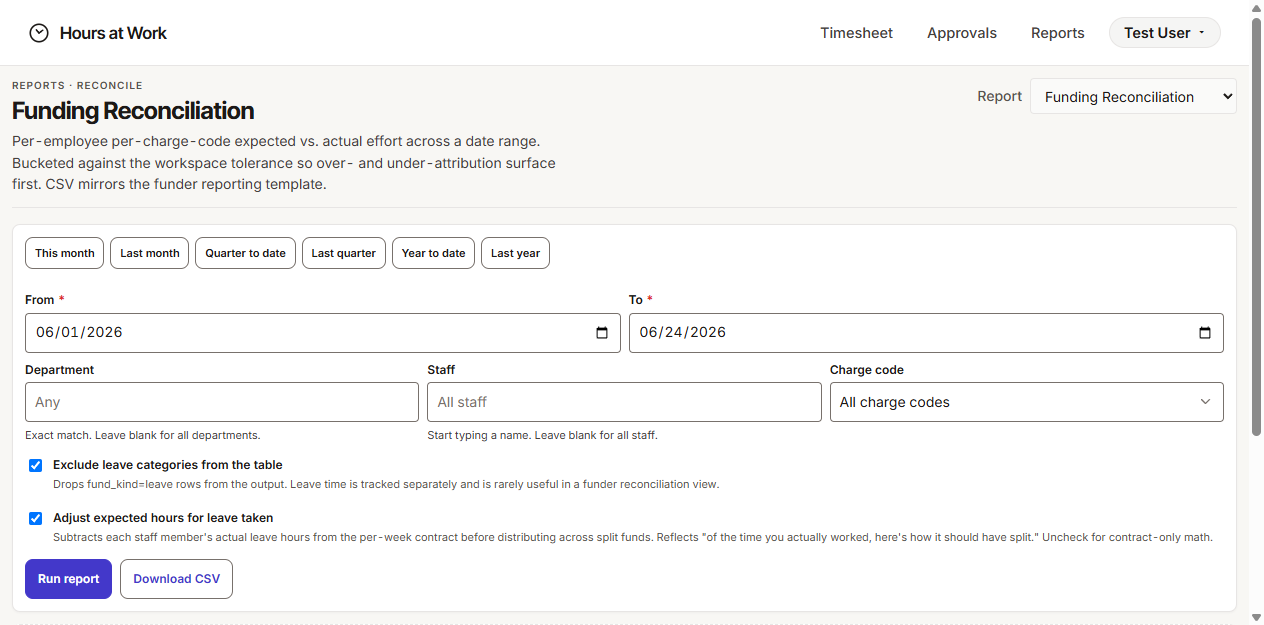
The form gives you everything you need in one view:
- Date range chips — This month, Last month, Quarter to date, Last quarter, Year to date, Last year. Click one to set From and To in one go.
- From and To date pickers — type or pick custom dates. The chips fill these in, but you can override either field.
- Department — exact-match text. Leave blank for all departments.
- Staff — start typing a name. Leave blank for all staff.
- Charge code — pick a specific charge code, or leave on All charge codes.
Below the filters are two toggles that change how the math works. They're both on by default, and most of the time you want to leave them that way:
- Exclude leave categories from the table — drops Leave-kind rows (PTO, Sick, Holiday) from the output. Leave time is tracked separately and rarely useful in a funder reconciliation view.
- Adjust expected hours for leave taken — subtracts each staff member's actual leave hours from their per-week contracted hours before distributing across split charge codes. This reflects "of the time you actually worked, here's how it should have split." Uncheck for contract-only math.
Pick a date range and run
Click the chip that matches the funder's question, then click Run report.
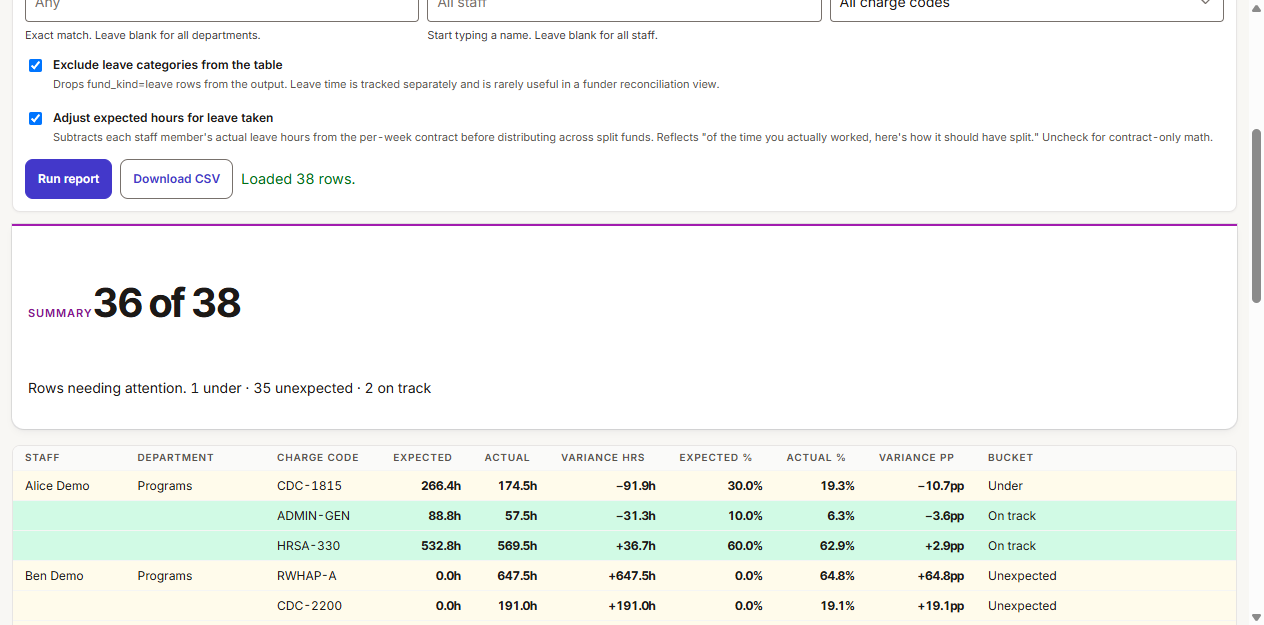
You'll see a results table appear below the form. Columns:
- Staff, Department, Charge code — identify the row.
- Expected (hours) — what the funding split predicted.
- Actual (hours) — what the staff member actually logged.
- Variance hrs and Variance pp — the difference in hours and in percentage points.
- Bucket — a quick label. Scan this column first.
The Bucket column is your at-a-glance signal:
- On track — actual effort lands inside your workspace tolerance.
- Under — staff member is logging less to this charge code than the funding split predicted.
- Over — the opposite.
- Unexpected — there was no funding split allocation for this charge code at all, but actual hours were logged anyway.
- NEEDS ATTENTION — a large gap that crosses the threshold for a flag.
Why this matters. Variance is the headline finding for any funder reconciliation. Unexpected rows are the ones that get you audited — they mean staff logged hours to a charge code their profile didn't allocate to, which is fine for one-off work but a problem if it's systematic. Catch those before the funder does.
When the date range spans a funding-split change
Run Funding Reconciliation across a quarter or fiscal year and your staff will often have split changes inside the range — a new grant kicking in, a reallocation between charge codes, a fund closing. The report handles this automatically, but the math is worth understanding for audit questions.
The report works week by week. For each Monday-starting week in your range, it picks the funding split in effect on that week's Monday, computes the week's expected hours (business days × 8 × FTE, minus this week's leave if you toggled that on), and distributes them across whatever charge codes were active in that version. It sums everything per (staff × charge code) across the full range.
A few things to know:
- The result flattens. You see one row per (staff × charge code), not one row per version. A charge code that appeared only in the older split still gets its own row — the expected just covers the weeks that split was active. New charge codes from the newer split show up the same way. A funder reading the CSV sees the integrated picture across the range.
- Mid-week version changes round down. A funding-split change effective on a Wednesday still uses the OLD split for that entire week. The new split kicks in the following Monday. Schedule funding-split changes on Mondays when you can. It keeps the math clean and gives you a defensible answer for any audit question about a specific week.
- FTE is current, not historical. The report uses each staff member's current FTE on their User profile for the entire range. If someone moved from 0.6 FTE to 1.0 FTE mid-quarter, the report computes against the current value for every week — including the weeks before the change. Historically-correct FTE is on the roadmap. If a funder questions variance on a staff member whose FTE changed mid-range, surface this caveat explicitly.
Why this matters. Funder reports talk in percent of effort across a period, not per-week breakdowns. The week-by-week math under the hood produces the integrated number that lands on the CSV — and the integrated number is what the funder is asking for.
Download CSV
Once the report has loaded, click Download CSV next to Run report. You'll get a one-row-per-staff-per-charge-code CSV that mirrors the on-screen table — drop it straight into your reconciliation workbook.
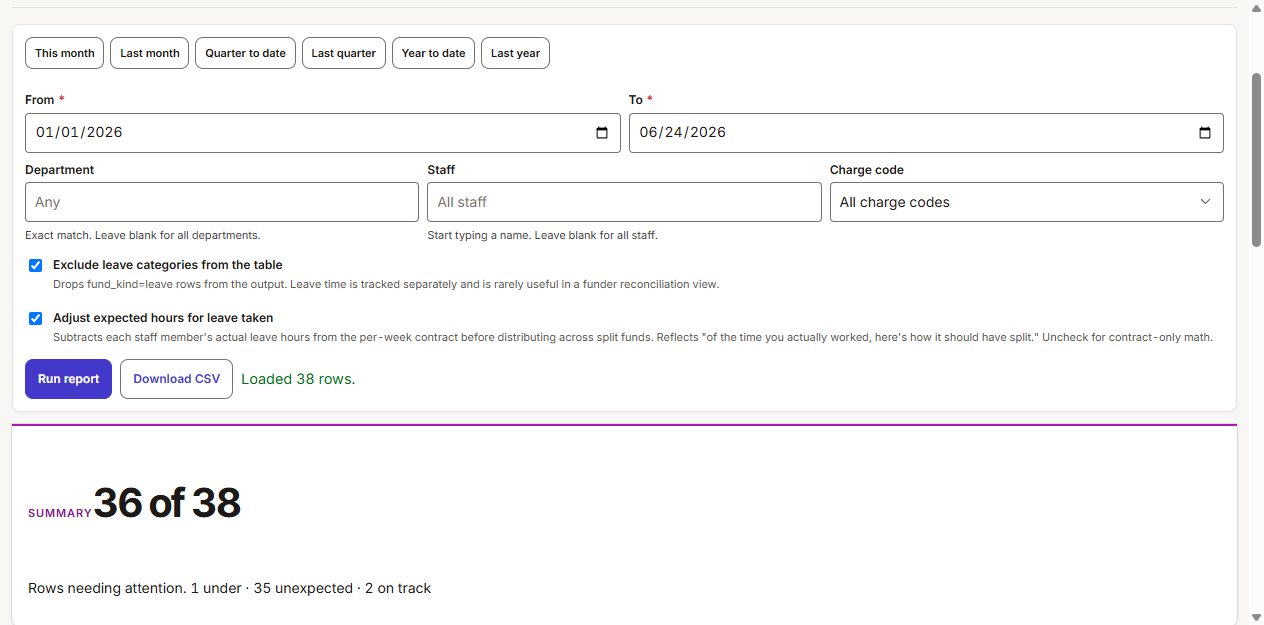
The CSV honors whatever filters and toggles you ran the on-screen report with, so set those first and download last. The filename embeds the date range, so a folder of historical exports won't overwrite each other.
Why this matters. The on-screen table is for reading; the CSV is for joining. Your reconciliation workbook probably already has expected columns, allowable cost rules, and indirect-cost math you've built over years. The CSV gives you the actuals to drop in.
Periodic tasks
The rhythm of fiscal work is monthly, quarterly, and annually — plus the ad-hoc funder request that lands on your desk Tuesday afternoon.
Monthly — reconcile against your general ledger
The first or second business day of each month, run Funding Reconciliation for the prior month.
- Open Funding Reconciliation.
- Click Last month.
- Leave the toggles at their defaults.
- Click Run report.
- Click Download CSV.
- Open the CSV in your reconciliation workbook. Match each row's actual hours to the labor lines in your general ledger for the same period.
If a row's actual hours don't match what your GL says was paid to that charge code, you've found a posting error. Trace it back through payroll before next month's close.
Why this matters. Monthly reconciliation is cheap — one report run, one CSV download, fifteen minutes of matching. A monthly habit catches GL coding mistakes while the underlying paystubs are still fresh. Skip a month and you're hunting through old paystubs six months later when a funder asks why the totals don't add up.
Quarterly — funder drawdowns and progress reports
Most grant funders want a quarterly drawdown or progress report. For each grant:
- Open Charge-code Effort.
- Pick the quarter chip — Quarter to date during the quarter, or set a custom range after it closes (Charge-code Effort doesn't have a Last quarter chip; use From/To).
- Set Charge-code kind to Grant.
- Set Charge code to the specific funder's code (for example,
HRSA-330orRWJF-EQ). - Click Run report.
- Click Download ▾ and pick: - Charge-code effort (aggregated) for the funder spreadsheet (one row per charge code × staff). - Timesheet detail (per entry) if the funder wants line-item evidence (one row per timesheet entry).
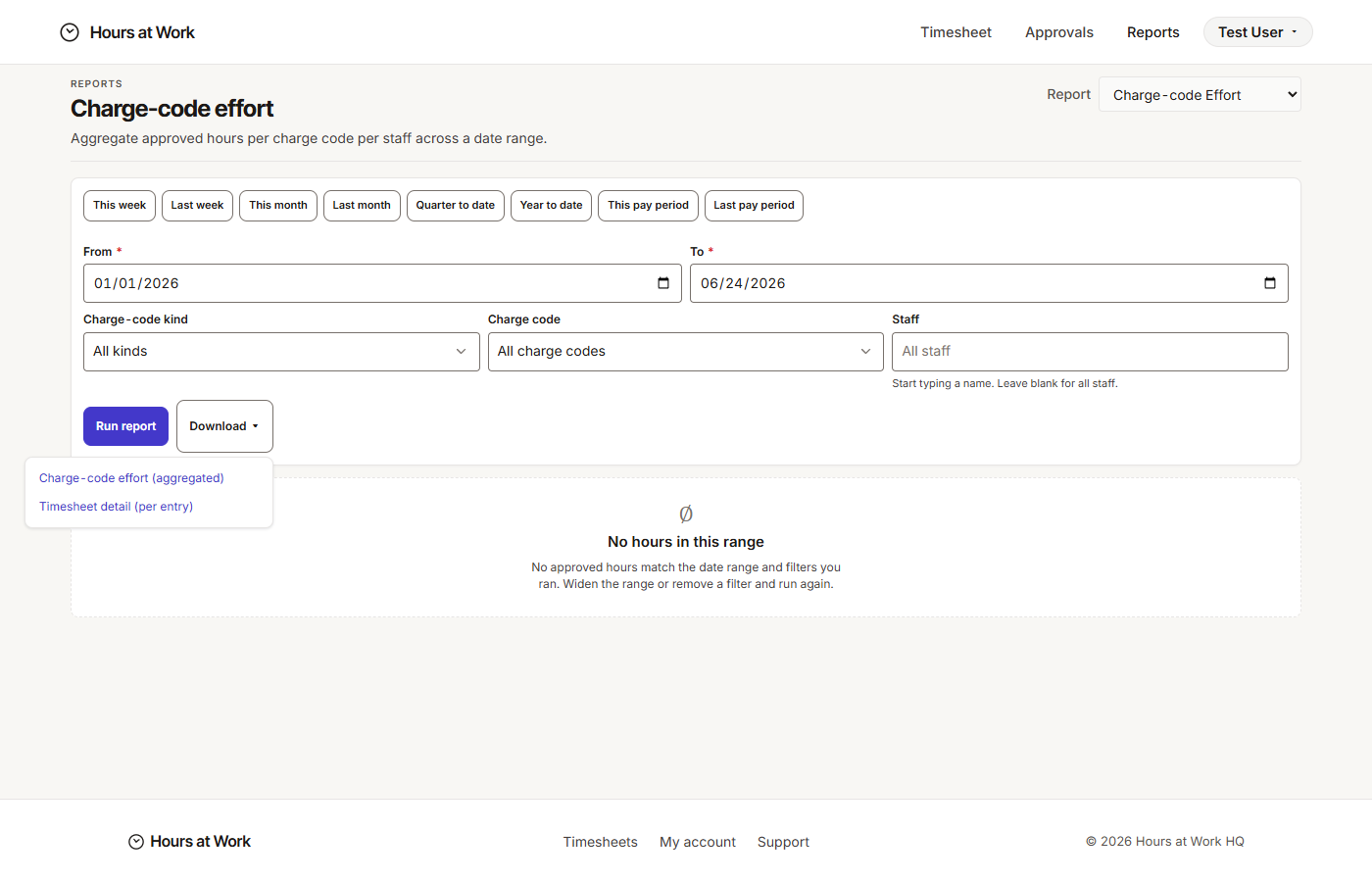
If the funder requires signed-PDF evidence — most federal funders do — follow up with a Staff Effort bundle. See Generate a signed-PDF bundle below.
Annually — your audit binder
Once a year, run Funding Reconciliation for the full fiscal year and archive the CSV in your audit binder.
- Open Funding Reconciliation.
- Click Year to date (or Last year if the fiscal year just closed).
- Leave all other filters blank.
- Click Run report, then Download CSV.
- Save the CSV in your audit binder, named with the fiscal year.
Add matching Staff Effort Bundle PDFs for any grant your single audit will sample, and you have the complete record an external auditor will ask for.
Ad-hoc — generate a signed-PDF bundle for funder audit
When a funder requests proof of effort — usually a packet of signed timesheets covering a specific date range — use the Staff Effort report's bundle download. Bundle generation lives only on Staff Effort, so if you ran Charge-code Effort or Funding Reconciliation first, switch reports before you try to download a bundle.
- Open Switch report → Staff Effort.
- Set the date range using a chip — This month, Last pay period, Quarter to date, Year to date — or set custom From/To dates.
- Optionally filter by Department or Staff if the funder only wants a specific team or person.
- Click Run report. You'll get a per-timesheet table with a selection checkbox on each row and a per-row PDF ↗ link.
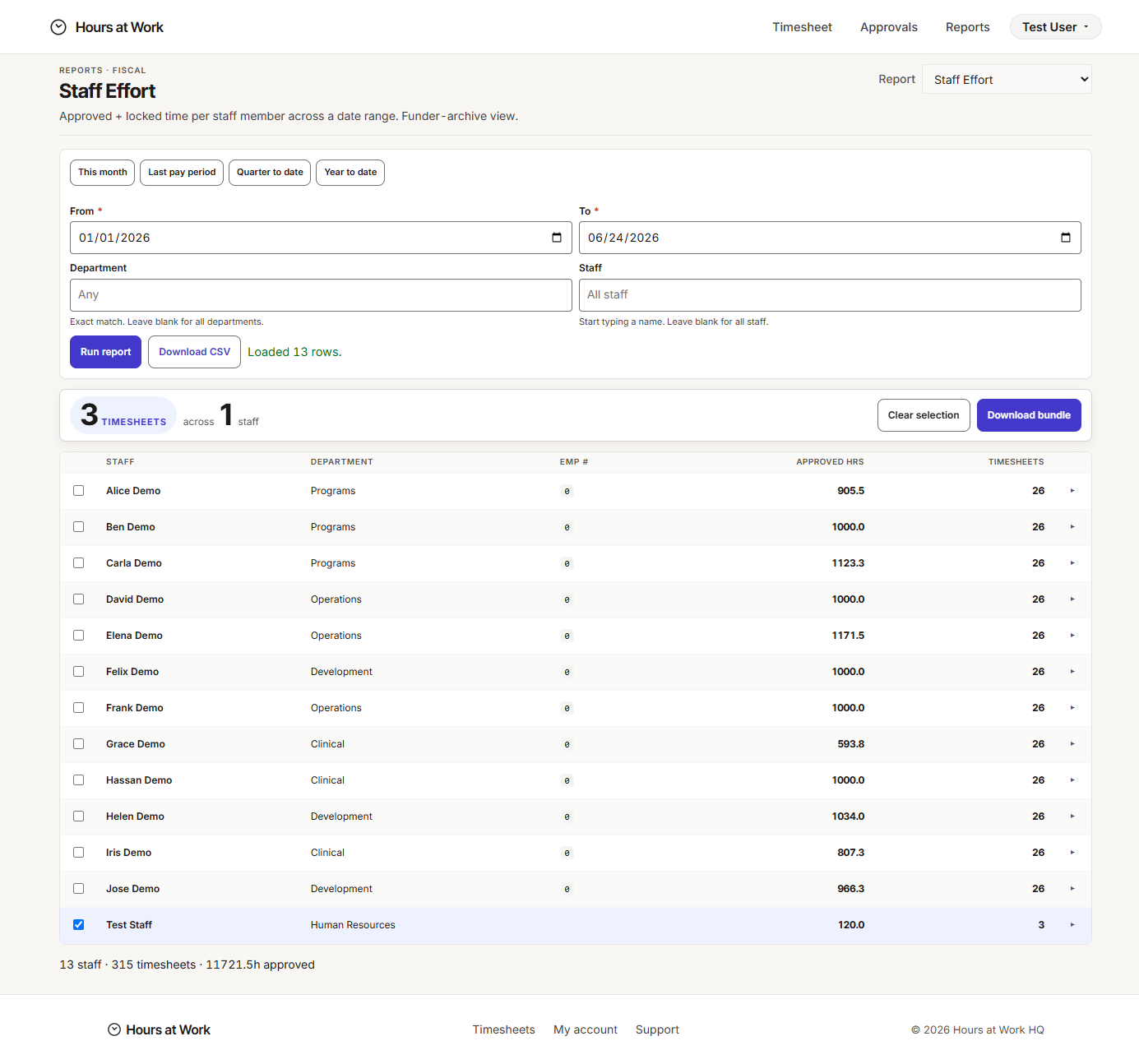
- Tick the selection checkbox on each timesheet row you want in the bundle. As you select, an action bar appears at the top with a live count — "3 timesheets selected, 2 staff."
- Click Download bundle.
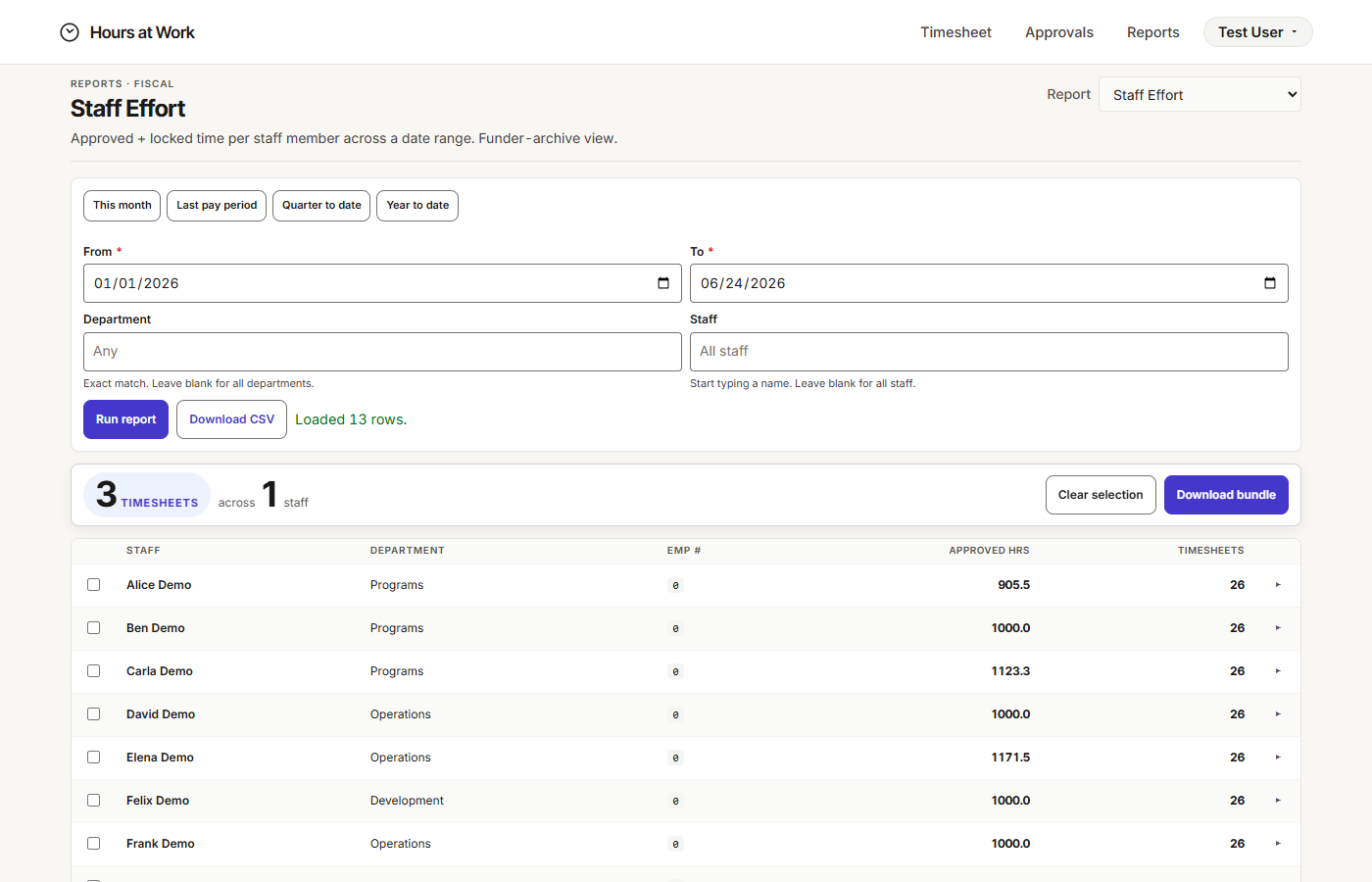
You'll get a single PDF download named like timesheet-bundle-2026-06-24-12sheets.pdf containing every signed timesheet PDF for your selection, stitched together in selection order — the audit-ready artifact you attach to your drawdown or upload to the funder portal.
Why this matters. A Bundle PDF is the single deliverable funders accept as proof of effort. CSVs are for your worksheets; the bundle is for their auditors. Each underlying PDF carries the staff member's submission timestamp, the approver's name, the approval timestamp, and the approval hash — the chain a funder auditor will trace.
Reports and outputs
Your role uses three reports and produces two artifact types.
Funding Reconciliation
Your headline report. Per-staff per-charge-code expected vs. actual effort across a date range, bucketed against your workspace tolerance. Use it monthly for GL reconciliation, quarterly for variance reviews, and annually for your audit binder.
- Filters: date range chips + From/To, Department, Staff, Charge code.
- Toggles: Exclude leave categories from the table; Adjust expected hours for leave taken.
- Date chips: This month, Last month, Quarter to date, Last quarter, Year to date, Last year.
- Output: on-screen pivot table + Download CSV.
- Aggregation: counts APPROVED and LOCKED timesheets.
Charge-code Effort
Total approved hours per charge code for any date range. Use it for per-funder quarterly drawdowns and any "how many hours did Grant X get?" question.
- Filters: date range chips + From/To, Charge-code kind (Admin / Grant / Leave), Charge code, Staff.
- Date chips: This week, Last week, This month, Last month, Quarter to date, Year to date, This pay period, Last pay period.
- Outputs: on-screen pivot + Download ▾ dropdown with two CSV variants: - Charge-code effort (aggregated) — one row per charge code × staff. - Timesheet detail (per entry) — one row per timesheet line item.
- Aggregation: counts APPROVED hours only. Hours still in DRAFT or SUBMITTED won't appear — see Troubleshooting below.
Staff Effort
Approved + locked time per staff member per week across a date range. The funder-archive view — and the only place you generate signed-PDF bundles.
- Filters: date range chips + From/To, Department, Staff.
- Date chips: This month, Last pay period, Quarter to date, Year to date.
- Outputs: on-screen per-timesheet table + Download CSV + per-row PDF ↗ links + multi-select Download bundle.
- Aggregation: counts APPROVED and LOCKED timesheets.
CSV downloads
Every report's CSV drops straight into your reconciliation workbook. Headers in the first row, one row per the smallest natural unit (staff × charge code for Funding Reconciliation; charge code × staff or per entry for Charge-code Effort; per timesheet for Staff Effort). The filename embeds the date range and report name; re-running with different filters produces a fresh file without overwriting.
Signed-PDF bundles
A Bundle PDF is a single PDF download containing the Signed PDFs for every staff × week in your Staff Effort selection. Each underlying PDF carries the staff member's submission timestamp, the approver's name, the approval timestamp, and the approval hash — the chain a funder auditor will trace.
Troubleshooting
The five things that come up most often, and what to do.
"Hours look low for this period"
Your reports only count signed time:
- Funding Reconciliation counts APPROVED and LOCKED hours.
- Charge-code Effort counts APPROVED hours only.
- Staff Effort counts APPROVED and LOCKED hours.
If staff submitted but their approver hasn't signed off, those hours don't appear in your views until the approval lands. Charge-code Effort will show an empty state — "No approved hours match the date range and filters you ran" — when this happens for everyone in the range.
Confirm what's still pending by asking your HR Analyst to run Payroll Readiness for the same pay period — that report shows AWAITING and DRAFT rows your fund views are silent about. See the HR Analyst guide → Payroll Readiness.
"Funder split looks wrong"
Funding Reconciliation calculates expected effort using each staff member's funding split, stored on their User profile. If a split changed inside your date range, the report handles it automatically — see When the date range spans a funding-split change for the week-by-week math.
If the result still doesn't match what you expect, confirm the profile timeline is correct. For full split mechanics, see the Admin guide → User profiles.
"Numbers don't match my general ledger"
Toggle behavior is the usual culprit. Try the report once each way:
- Adjust expected hours for leave taken ON → expected hours subtract actual leave first, then distribute. This is "of the time you actually worked, here's how it should have split" — closer to ledger labor lines for staff who took leave.
- Adjust expected hours for leave taken OFF → expected hours use the per-week contracted total verbatim, then distribute. This is contract-only math — useful when you're reconciling against budgeted FTE rather than actual paid hours.
One of the two should match your GL. The combination matters more than the date range.
"Charge code is missing from the dropdown"
It may be marked Inactive. Inactive charge codes drop out of the picker but stay in historical reports — every CSV from a date range when the code was active will still include it. Ask your Admin to reactivate it if you need it for new reporting. See the Admin guide → Build your charge code list.
"I don't see a charge code I expected, even though it's active"
Confirm the Funder and Funder type fields are filled on the charge code. Funding Reconciliation groups by Funder, so a charge code with an empty Funder field will appear in the report — but in the Unexpected bucket, not under the funder you were looking for. Your Admin sets these fields. See the Admin guide → Build your charge code list for the field reference.
Quick reference
| Question you're answering | Report | Output |
|---|---|---|
| Where did our money go this quarter? | Funding Reconciliation | CSV + on-screen table |
| How many hours did this grant get? | Charge-code Effort, kind = Grant | CSV (aggregated or per-entry) |
| What did this person work on? | Staff Effort, filter to one staff | CSV |
| Funder needs signed proof of effort | Staff Effort → select rows → Download bundle | Bundle PDF |
| Audit binder, fiscal year | Funding Reconciliation, Year to date | CSV |
| Reconcile against GL, monthly | Funding Reconciliation, Last month | CSV |
See also
- Admin guide — how charge codes, Funders, and funding splits get set up.
- HR Analyst guide — the payroll-side reports your numbers will be cross-checked against at close.
- Glossary — every term Hours at Work uses, with definitions.