You lead a team. Your people log their hours, and at the end of each week you certify those hours are real — so the grants that fund your work can stand up to an audit. This guide walks you through the queue, the signature step, the rejection path when something looks off, and the delegation routine that keeps the queue moving while you're out.
This guide assumes your base role is Approver. If you also log your own hours, the Timesheet tab in your nav works exactly the way it does for Staff — see the Staff guide for that flow.
Getting started
When your Admin invites you with the Approver role, you'll get an email with a link to your workspace. Click the link, set a password, and sign in at your workspace URL — usually your-org.hoursatwork.com.
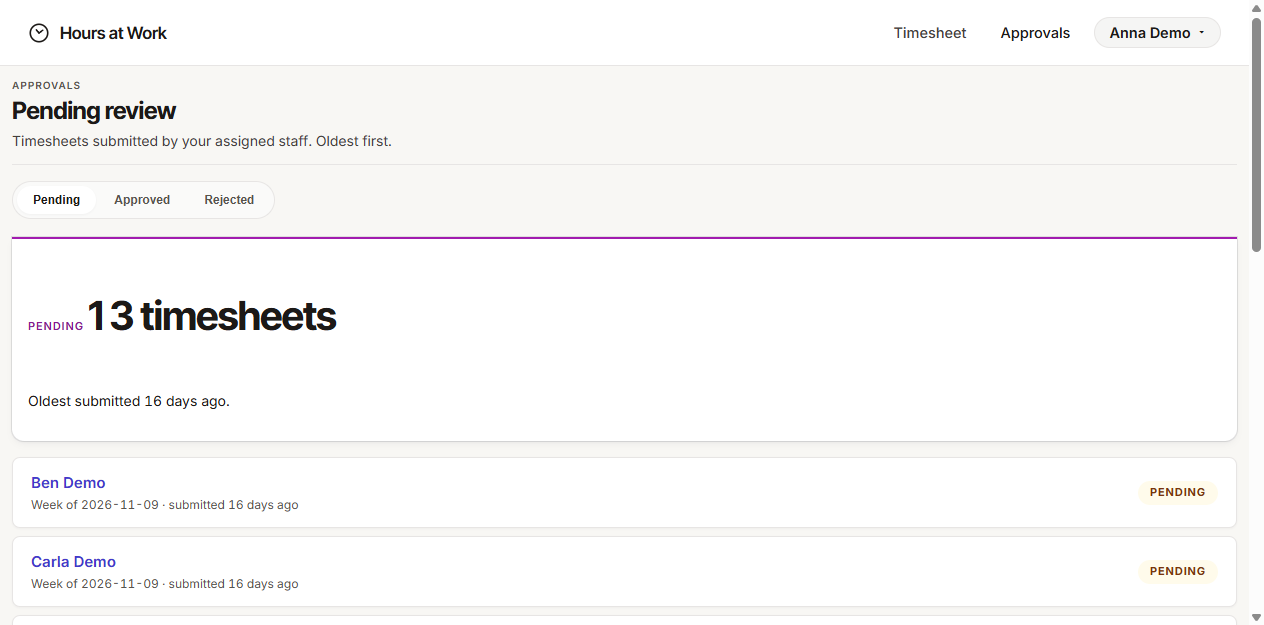
The first thing you'll see after signing in is your Approvals queue. That's intentional: an approver's home page is the work waiting for them, not their own timesheet.
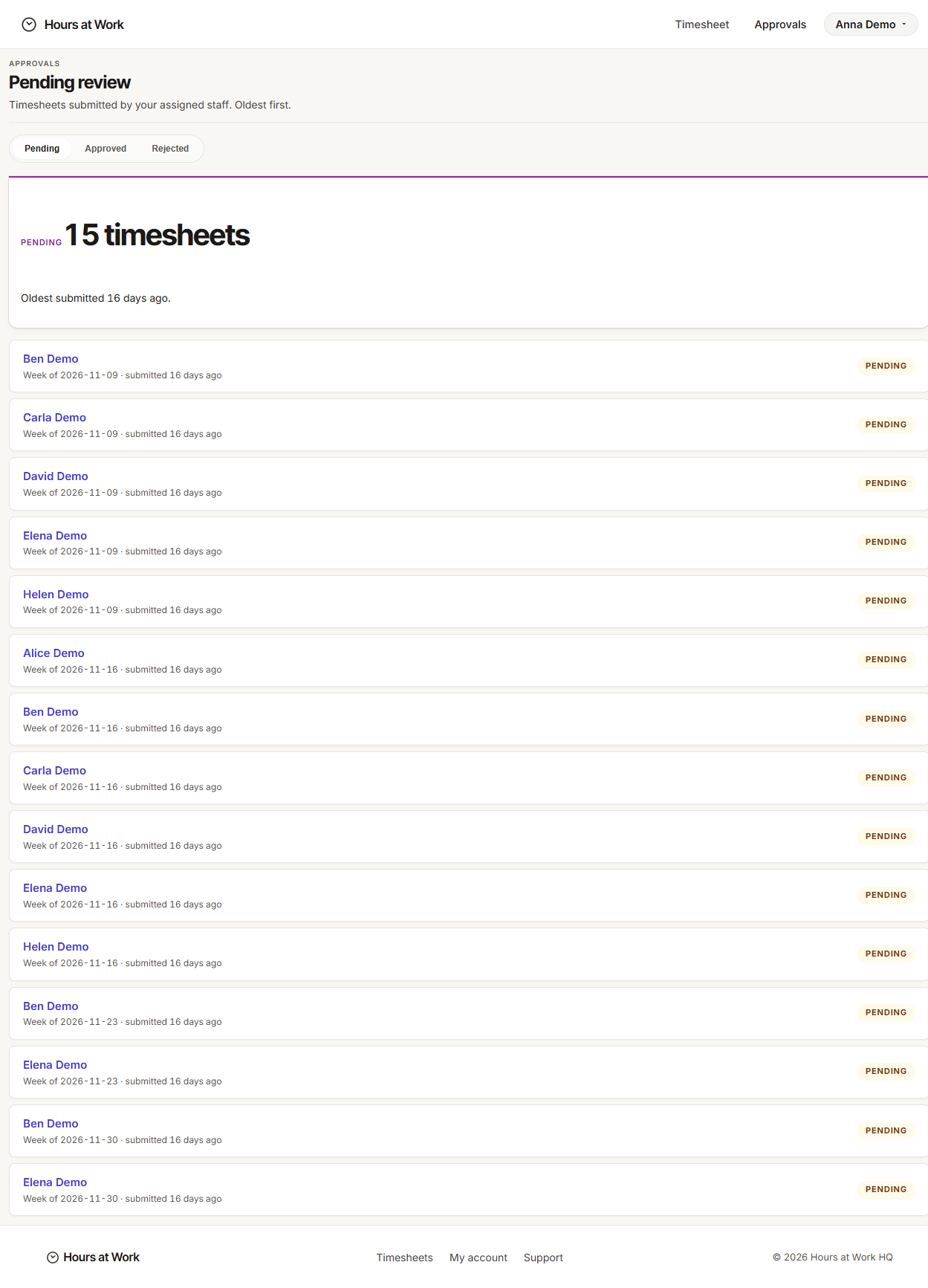
Three sub-tabs sit at the top of every Approvals view:
- Pending — staff-weeks waiting for your signature.
- Approved — your full sign-off history, with a Signed PDF available on every row.
- Rejected — timesheets you've sent back, waiting for the staff member to fix and resubmit.
The top navigation has three items:
- Timesheet — your own week, if you log hours.
- Approvals — your queue.
- Reports — visible only if your Admin has granted you a Fiscal Analyst or HR Analyst Access add-on; otherwise hidden.
Why this matters. Funders rely on your signature to certify that the hours billed to their grant are accurate. A clean queue is the operational evidence behind every reimbursement and every audit-ready Bundle PDF your Fiscal Analyst pulls later. Your turnaround time on the queue is the rate-limiter on the whole back office.
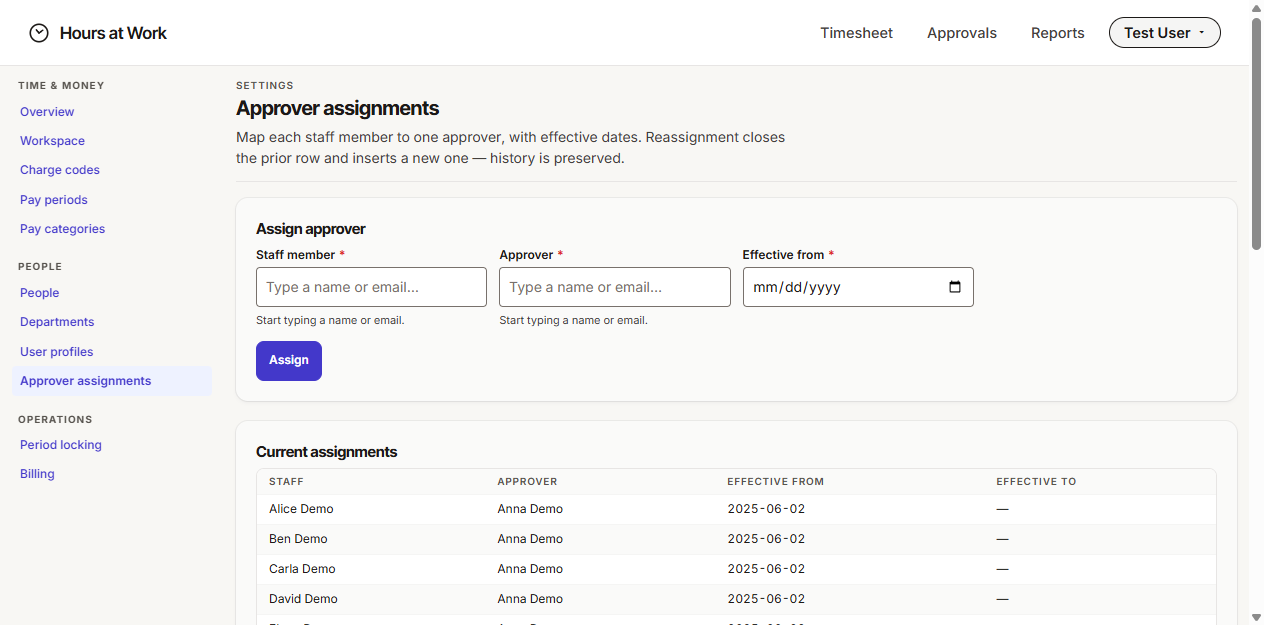
Confirm who reports to you. Open Approvals once and skim the names in the Pending tab. If a staff member you expect to see is missing, ask your Admin to check Settings → Approver assignments — that page is the source of truth for who routes to you. Approvers can't view that page directly, so this is one place you and your Admin trade notes.
Daily workflow
Most weeks, you'll spend ten or fifteen minutes in Approvals — five minutes Monday or Tuesday, ten minutes later in the week as more submissions land. The flow is the same every time.
Open Approvals and pick a row
Open Approvals → Pending. Each row is one staff member's one week, with a PENDING badge on the right. Click the row to open the timesheet.
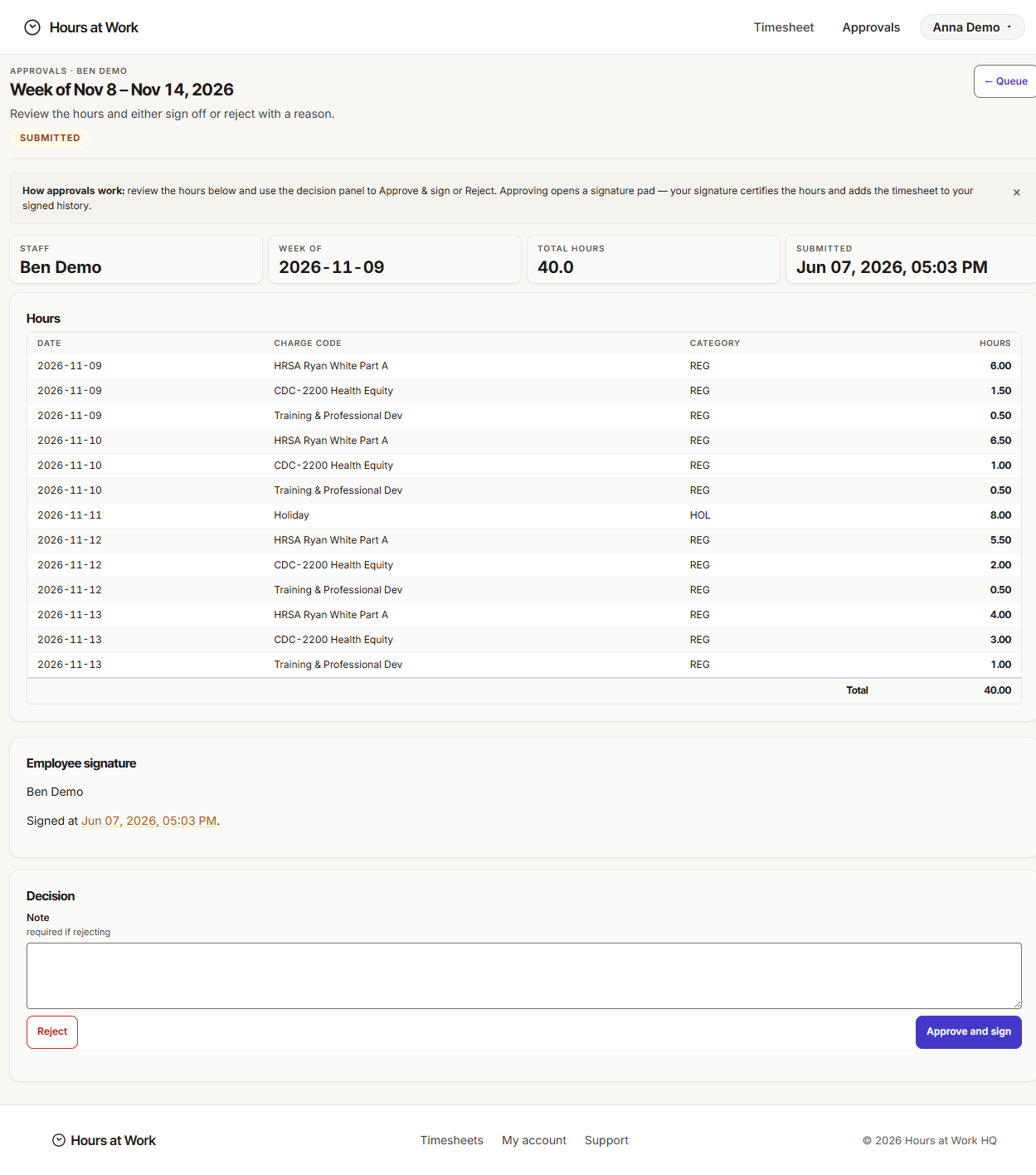
You'll land on the review view. The header shows the week range, the staff member's name, the total hours, and when they submitted. Below that, a table lays out every line of the week — Date, Charge code, Category, Hours — followed by the staff member's own signature (the UI labels this block Employee signature), and finally the Decision panel where you act.
Read the week
Three quick checks before you sign:
- Total hours — does the week's total match what you'd expect for this person? A full-time staff member usually hits 36 to 40. Way under, or way over, is the cue to look closer.
- Charge-code split — are the hours allocated to charge codes that match the work you saw them do this week? A staff member who spent Tuesday in HRSA program meetings shouldn't have those hours on a CDC grant.
- Leave hours — if they were out, is the Leave-kind charge code (Holiday, PTO, Sick) on the right day with the right hours?
Why this matters. Every line on a Grant-kind charge code becomes a number on a funder report. If the split is wrong now, the funder report is wrong later — and the bill-back gets clawed back when the audit catches it. Sixty seconds of review here saves an hour of correction later.
Approve and sign
If the week looks right, click Approve and sign. A signature dialog opens with two tabs — Type (just type your full legal name) or Draw (use a mouse or touchscreen). Either is legally binding.
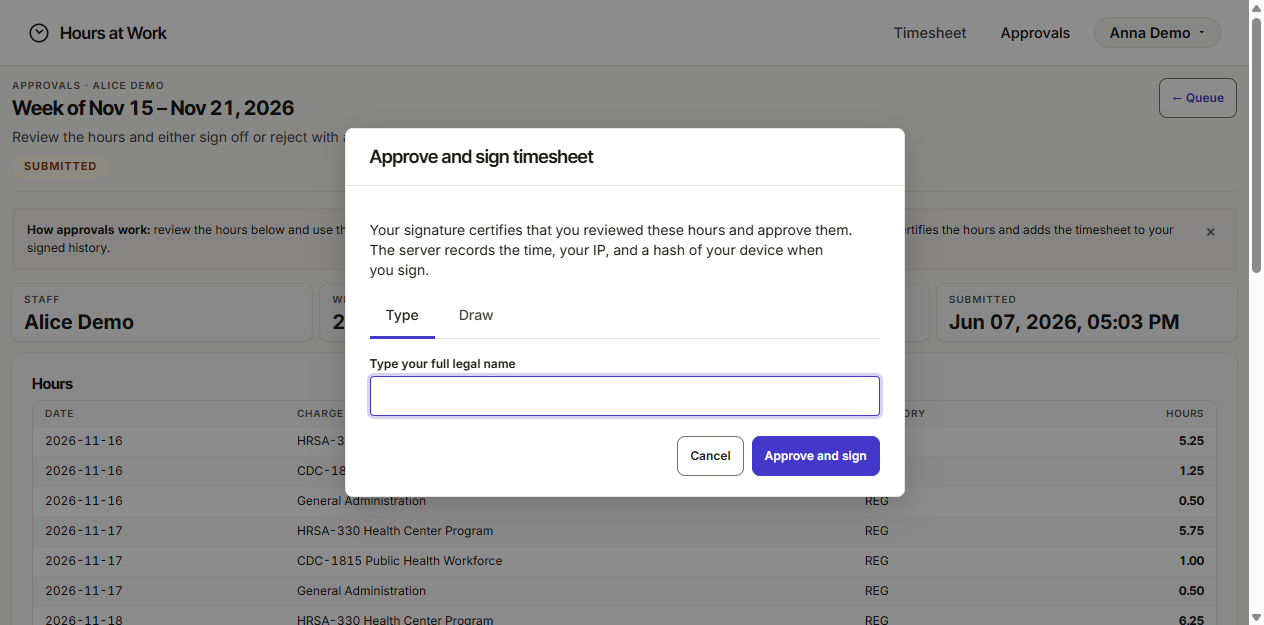
Type your name, click Approve and sign, and the dialog closes. The status flips to APPROVED, the Decision panel collapses, and a Download signed PDF button appears in its place. The Signed PDF carries the hours table, both signatures (the staff member's and yours), the timestamp, your IP, and a device hash — everything an auditor needs.
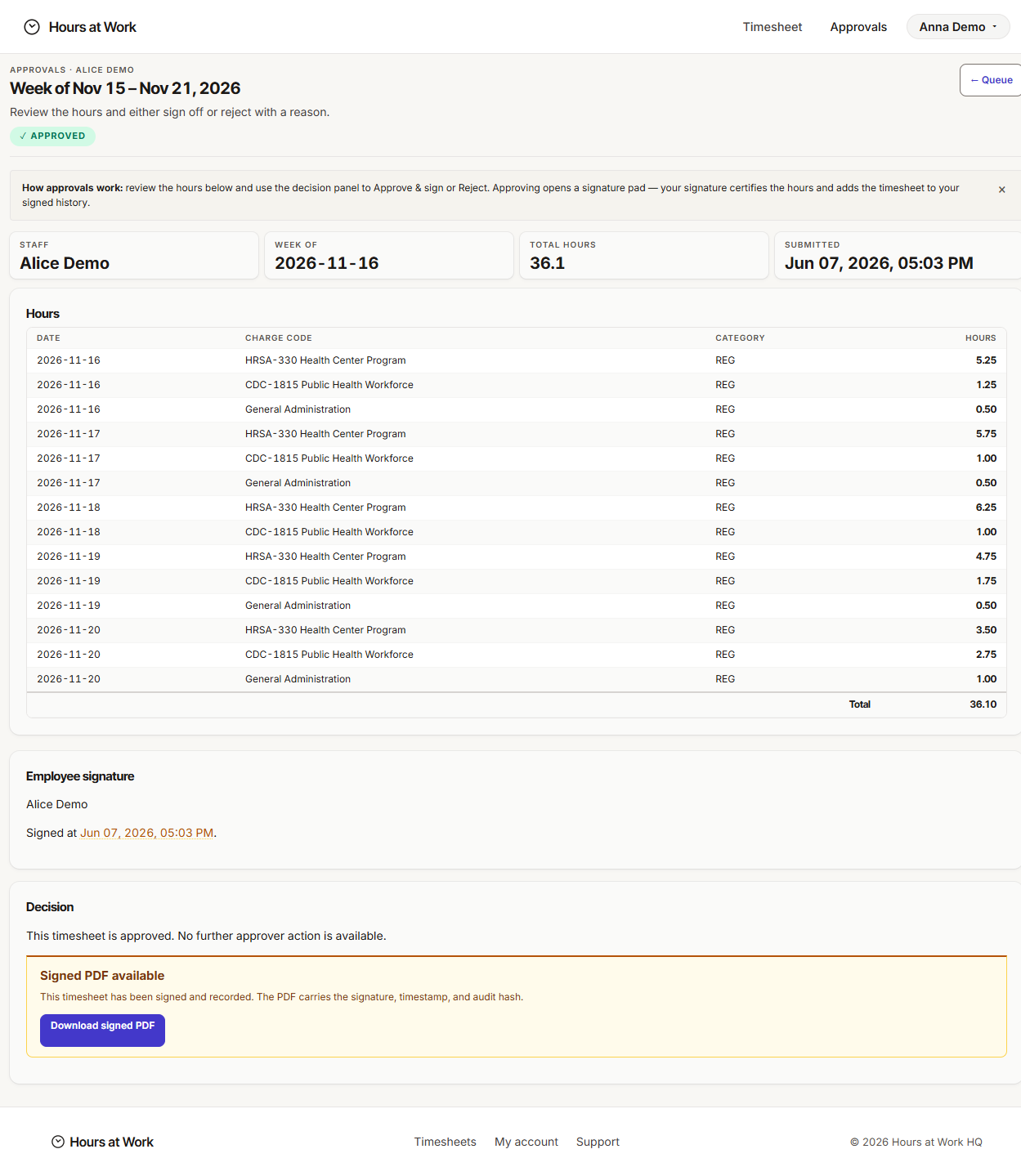
Why this matters. That Signed PDF is the audit-ready artifact. If a funder ever asks for proof that a specific staff member worked a specific week on their grant, this is the document your Fiscal Analyst pulls. It only exists after you sign.
Reject and send back
If something's wrong — totals don't add up, the charge-code split looks suspicious, a Leave day is missing — click Reject instead. The Note field above the Reject button is required, and the note is what the staff member sees in their dashboard. Be specific.
A good reject note tells the staff member exactly what to fix:
A bad reject note makes them guess:
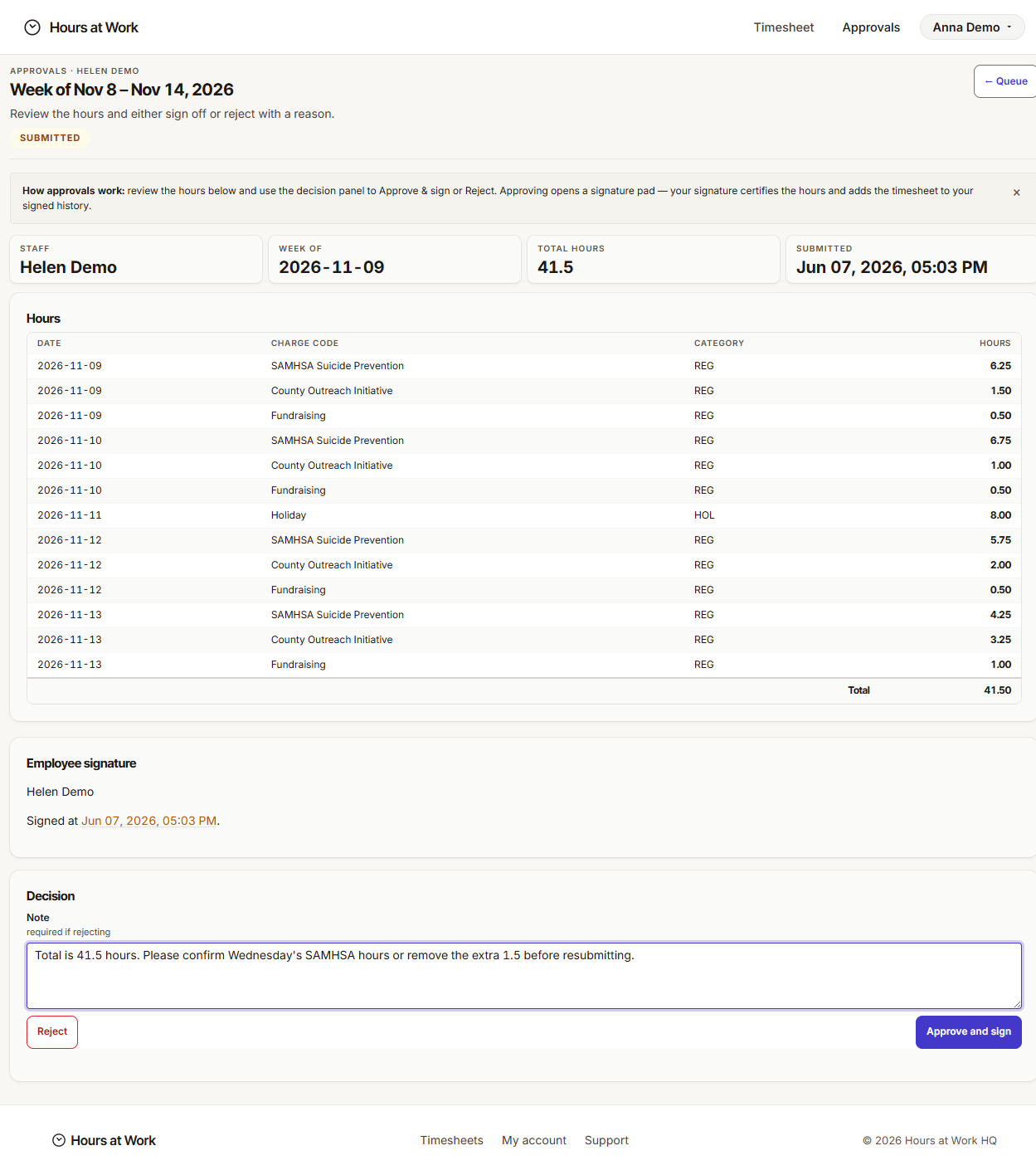
Click Reject. The status flips to REJECTED and the timesheet moves out of your Pending tab. The staff member is notified — they'll open the same week, edit it, and resubmit. When they do, it lands back in your Pending tab as a fresh row.
Why this matters. Email-based corrections — "hey, your timesheet looks off" — leak context and stall. A note attached to the rejection lives with the timesheet, the staff member sees it the moment they open the week, and the audit trail records that the conversation happened. Use the note field every single time.
Log your own hours
If you're an Approver who also logs hours, click Timesheet in the top nav between approvals. Your own week works exactly the same as a Staff timesheet — see the Staff guide for the full flow. When you submit your week, it routes to your approver — not to yourself — so your turnaround depends on whoever your Admin assigned to sign you off.
Periodic tasks
End of pay period — clear the queue
Your Admin closes the pay period a few business days after it ends. Once it's closed, the timesheets inside it lock — staff can't edit, and you can't approve. Clear your Pending tab before that happens.
A sensible cadence:
- Period end day — pass through the queue once, approve everything that's clean.
- First business day after period end — pass through again, chase anything still missing.
- Submission deadline day — final pass. After this, anything still pending is going to need an Admin to reopen the period if it slipped.
If your HR Analyst is running the Pending Approvals report (see the HR Analyst guide), your queue is exactly what they're looking at when they decide whether payroll can close clean. The faster you sign, the easier their close.
Before going on leave — set a Delegation
When you're going to be out for more than a day or two during a period when staff might submit, route your queue to a covering colleague. You can't set up your own Delegation from inside the app — the Delegations form lives on the Admin's Settings → Approver assignments page. Email your Admin with three pieces of information: who's covering you, the date range, and the reason (so the audit log carries it).
Your Admin sets the Delegation here:
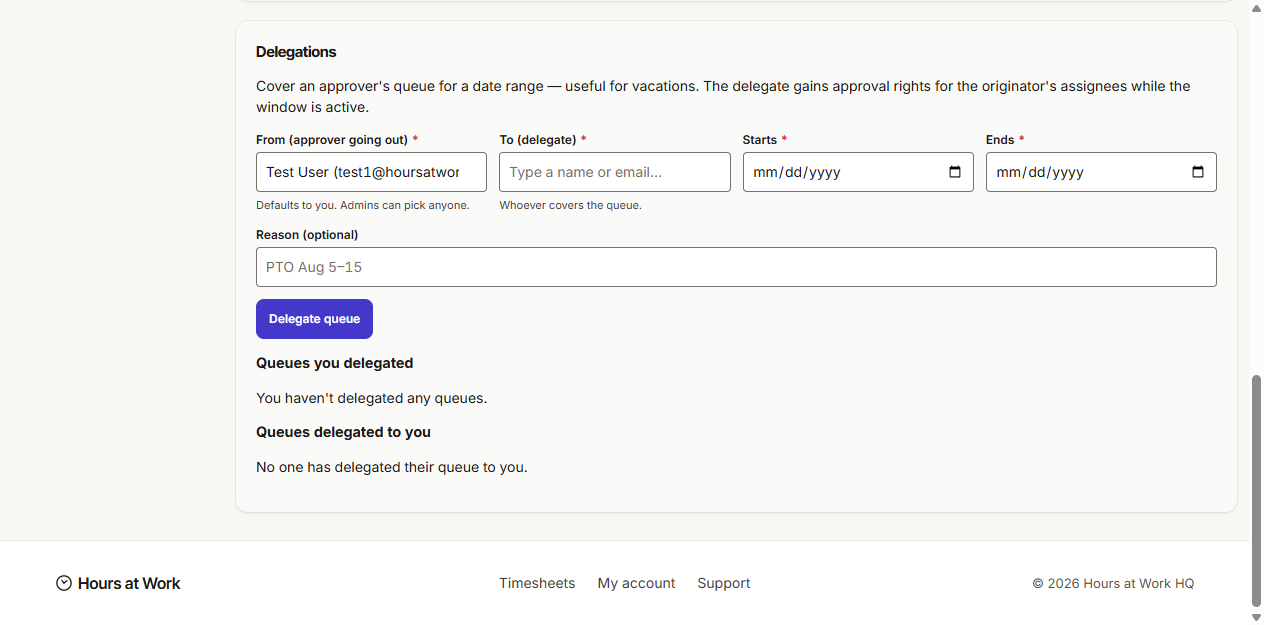
While the delegation window is active, every new submission from your assigned staff appears in your delegate's Pending tab — alongside their own queue. The audit log records that the delegate signed on your behalf for that window.
Why this matters. A signed timesheet that doesn't make it back to payroll on time is a paycheck that doesn't go out on time. Delegations are how you keep your team paid while you're on PTO without compromising the audit trail.
After leave — review what your delegate signed
When you're back, open Approvals → Approved. Scroll to the date range covered by the Delegation. Every row signed during that window was signed by your delegate, not by you. The Signed PDF on those rows carries their signature — your audit chain is intact.
If anything looks wrong (a row signed off that shouldn't have been), talk to your delegate first, then loop in your Admin. The Admin can reopen the specific timesheet if a correction is needed — see "I made a mistake — I approved something I shouldn't have" below.
Monthly — review the Rejected tab
Open Approvals → Rejected. Anything sitting here is waiting for a staff member to fix and resubmit. People forget — a row that's been here for three weeks is usually a person who never got back to the rejection. Send them a short reminder. If the period has since closed, you and your Admin will need to decide whether to reopen the period or let the row stay rejected.
Why this matters. Rejected timesheets that never resubmit show up as gaps on the HR Analyst's Unfinished and Compliance Gaps reports, and as missing hours on the Fiscal Analyst's Funding Reconciliation. Two minutes of follow-up here prevents twenty minutes of cleanup downstream.
Reports and outputs
You produce two things as an Approver: signatures (Signed PDFs) and decisions (the Approved / Rejected history). Both live in the Approvals tab.
Approved tab — your signature history
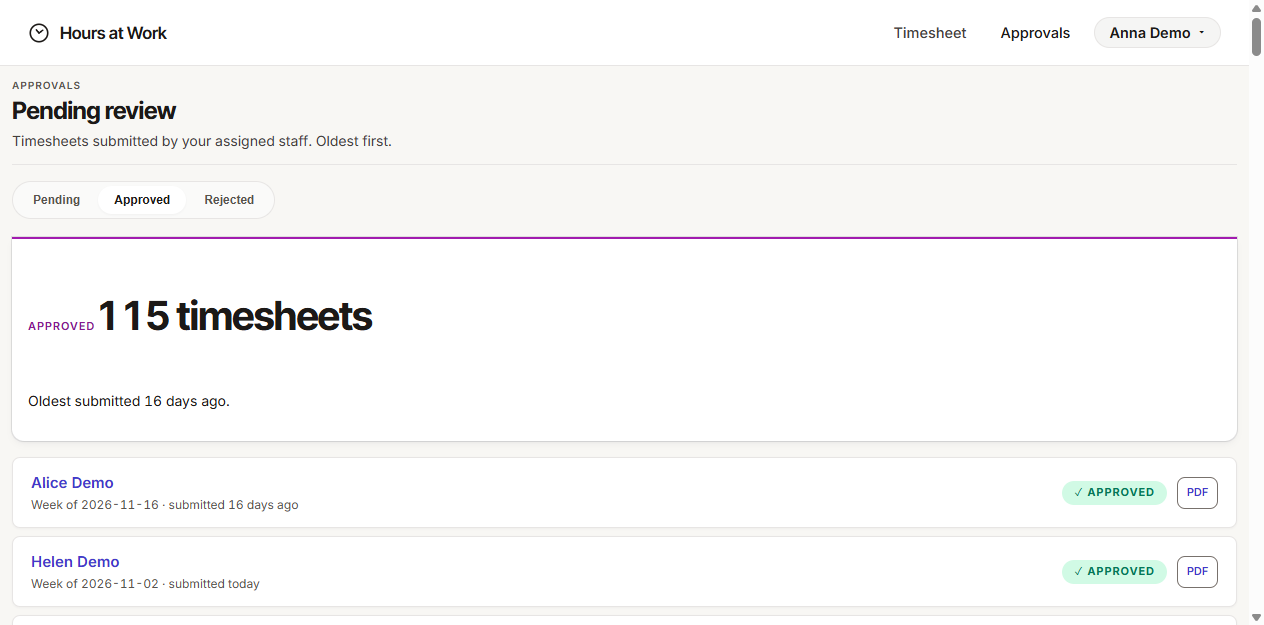
The Approved tab is the searchable record of every timesheet you've ever signed. Each row carries a green APPROVED badge and a PDF button on the right — click it to download that staff-week's Signed PDF. The Signed PDF includes:
- The hours table for that week.
- The staff member's signature, timestamp, and IP.
- Your signature, timestamp, and IP.
- A device hash that ties the signature to the device used.
This is what your Fiscal Analyst pulls into Bundle PDFs for funder reporting. You usually won't download these yourself — the analyst does that from the Reports tab — but you can pull any single PDF here if a staff member asks for their own copy.
Rejected tab — open rejections
The Rejected tab is the list of timesheets you sent back that haven't been resubmitted yet. Treat it as a chase list, not a destination — every row here is unfinished business.
Your own signed PDFs
If you also log hours, your own approved timesheets live on the Timesheet tab. After your approver signs your week, a Download signed PDF link appears next to the week navigation — same artifact, same audit trail.
Troubleshooting
"My queue is empty but I know staff submitted"
You're almost certainly not listed as their Approver — or you weren't listed for the week they submitted. Approver assignments are dated: the assignment has an Effective from date, and your queue only shows weeks that fall on or after that date. Ask your Admin to open Settings → Approver assignments and confirm:
- Each staff member you expect is in the Current assignments table.
- Their Approver is you (not someone else).
- Their Effective from date is on or before the week start of the timesheet they submitted.
If the assignment is correct but you're still not seeing rows, check whether a Delegation is in effect — if someone delegated your queue to a colleague, the rows go to them, not to you, until the window ends.
"I rejected a timesheet but the staff member can't edit it"
Two things to check, in order:
- Pay period status. If the period containing that week is CLOSED, the timesheet is locked — no edits, no resubmissions. Your Admin needs to reopen the period (or just the single timesheet) before the staff member can fix it. See Admin guide → "A timesheet I closed needs editing again".
- Period lock. Your Admin may have applied a Period lock with a Lock through date that covers the week. Same fix — Admin reopens it.
If neither is the case, the staff member should open the same week they originally submitted — your rejection note is right there at the top — make their edit, and resubmit. The new submission lands back in your Pending tab as a fresh row.
"I'm covering a colleague's queue"
While a Delegation is active, every new submission from the delegating approver's staff appears in your Pending tab. There's no separate inbox and no visual flag in the queue — the rows blend in with your own. Approve or reject them the same way you'd handle your own staff. The audit log records that you signed on the delegating approver's behalf for that window.
When the delegation window ends, no more new rows route to you. Anything you already approved during the window stays approved.
"I want to approve in bulk"
There's no Approve All button, and that's by design. Every signature is a per-week, per-staff certification — that's what the audit trail requires. Bulk approval would attach one signature event to many rows, defeating the certification purpose funders rely on. Plan for ten to fifteen seconds per row and clear the queue in passes through the week.
"I made a mistake — I approved something I shouldn't have"
Ask your Admin to reopen that specific timesheet. The path on their side is Settings → Period locking → Locked timesheets → Reopen. Once reopened, the timesheet status drops back to SUBMITTED, you can re-review and either re-approve or reject, and the audit log records the reopen event with your Admin's name on it.
Why this matters. Approvals are immutable signatures — the system won't let you un-sign one, because an audit trail you can erase isn't an audit trail. The Reopen path is the supervised override, and the audit log makes the supervision visible. Use it for genuine mistakes; don't make a habit of it.
See also
- Staff guide — what your staff see when they submit a timesheet, and how they handle your rejection.
- Admin guide — Approver assignments, Delegations setup, Period locking, and the Reopen path.
- Fiscal Analyst guide — how your signatures become Bundle PDFs for funder reporting.
- HR Analyst guide — how your queue shows up on the Pending Approvals and Payroll Readiness reports.
- Glossary — every term Hours at Work uses, with definitions.